Something which doesn’t seem to happen so often is the migration of virtual machines from other Hypervisors to VCF.
Granted, for some Windows Services like Active-Directory, File-Services or VDI Services you can simply deploy another Windows Server, make it a replica and then decomission your old Server.
But even so, there are some other applications running on such Servers which simply creates headaches if you think about reinstalling them and especially configuring them and that is where HCX comes into play 🙂
For some Guest OS we are able to convert the virtual machine into a vSphere VM by leveraging the OS Assisted Migration service.
But what does it do? Well within HCX we typically have 2 sites:
HCX Connector (Source)
HCX Cloud Manager (Destination)
On Each Site Pair Sentinel Appliances are getting deployed.
For multi-site Environments:
- Source Site gets the Sentinel Gateway (SGW)
- Destination Site gets the Sentinel Data Receiver (SDR)
For single site Environments:
- The Sentinel Resouce Gateway will be deployed (either HCX Connector or HCX Cloud Manager)
And one thing that is needed for the non-vsphere based Hypervisors Guest-VMs:

Setting everything up
So within this article i will configure my single site HCX Environment to migrate some Guest VMs from Hyper-V 2022 and Hyper-V 2025.
As mentioned in the Supported Guest Operating Systems section of the HCX Documentation only Windows Server 2019 is supported (but we will still try it out with 2022 and 2025).
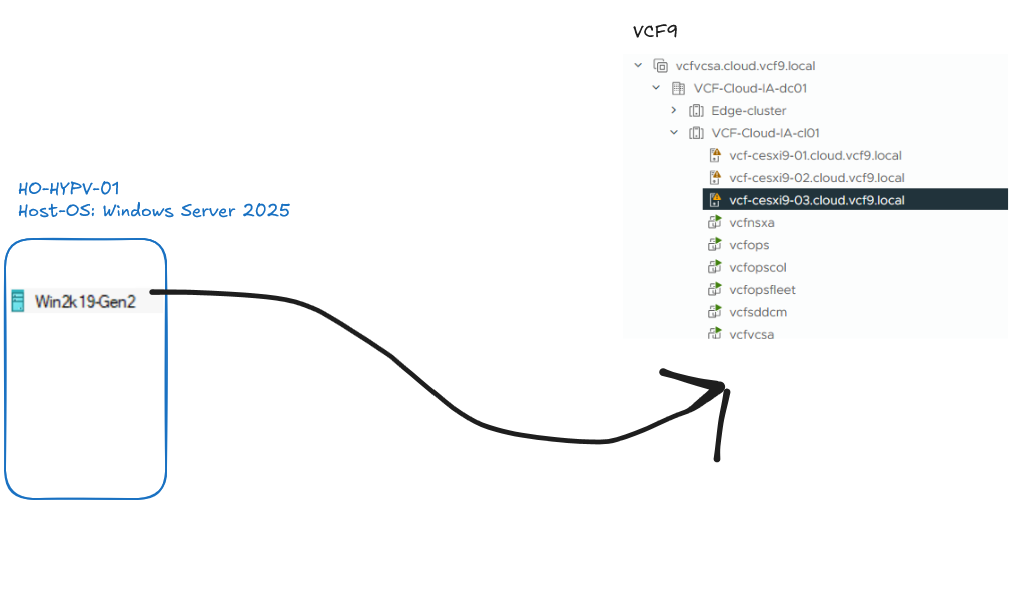
So how does the setup will look like?
1 Hyper V Host running Windows Server 2025 as a Host OS with a Windows Server 2019 Guest OS
1 VCF 9 Environment
HCX 4.11
Hyper-V VMs are using VLAN 1666 as their Guest-Network
What do we want do to? Migrate a single Hyper-V VM into our vSphere VCF9 Cluster.
Preps first:
HCX Connector:
Hostname: hcxonprem.lis.one
IP-Address: 192.168.40.190/24
HCX Download is available at the Broadcom Support Portal
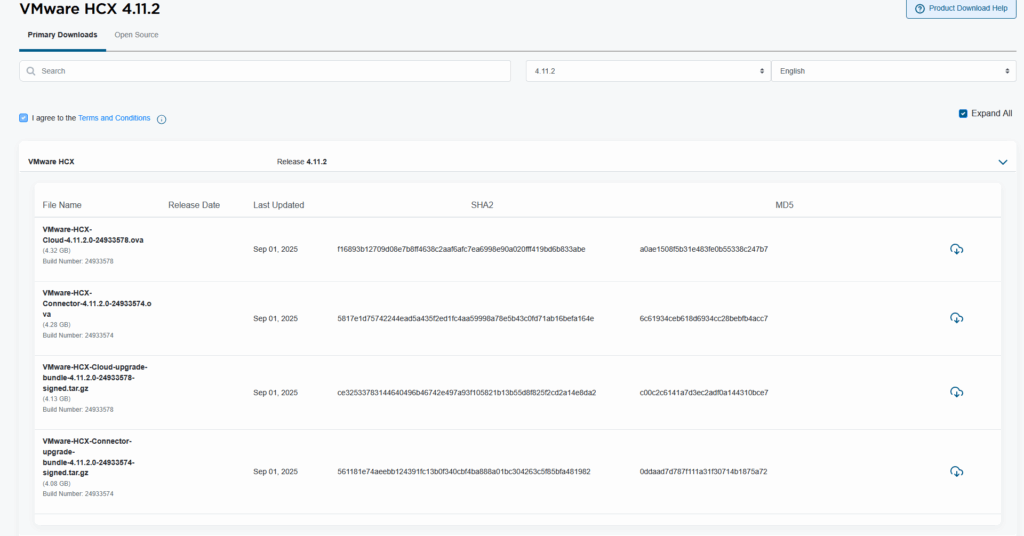
HCX Setup as a single-site Environment
I downloaded the HCX Connector OVA (because i need the source appliance as only that offers me the Sentinel Software Deployment) and deployed it within my vSphere Environment:
After the typcal wizard questions about the name, location, compute and license stuff we need to do some inputs:
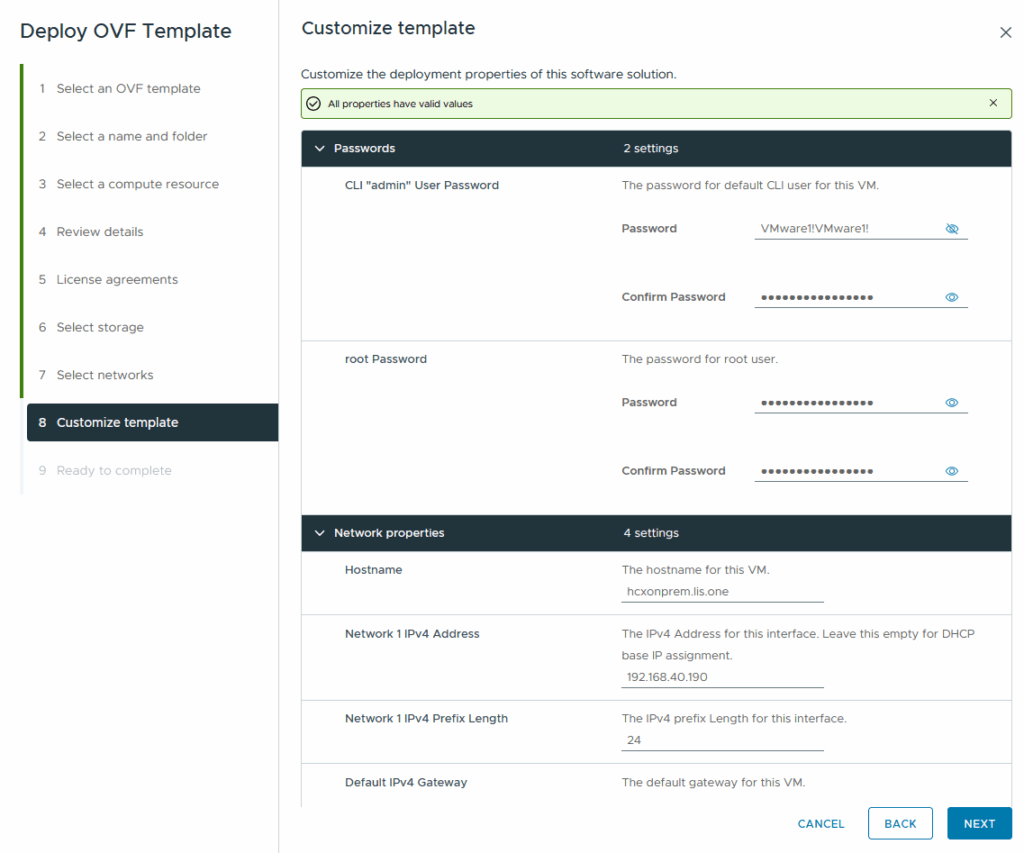
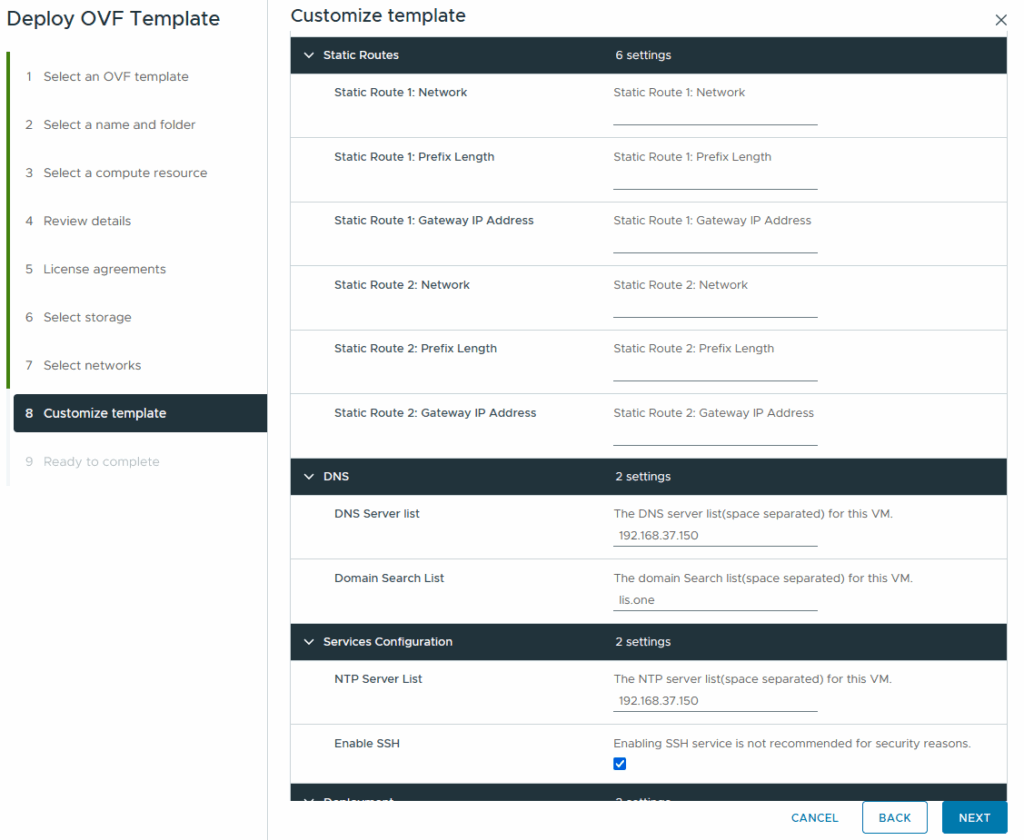

Setting up the HCX Connector
After the OVA is deployed, booted up and configured we should be able to visit it via our browser, but you gotta make sure to use the right url otherwise you will be visiting the end-user interface:
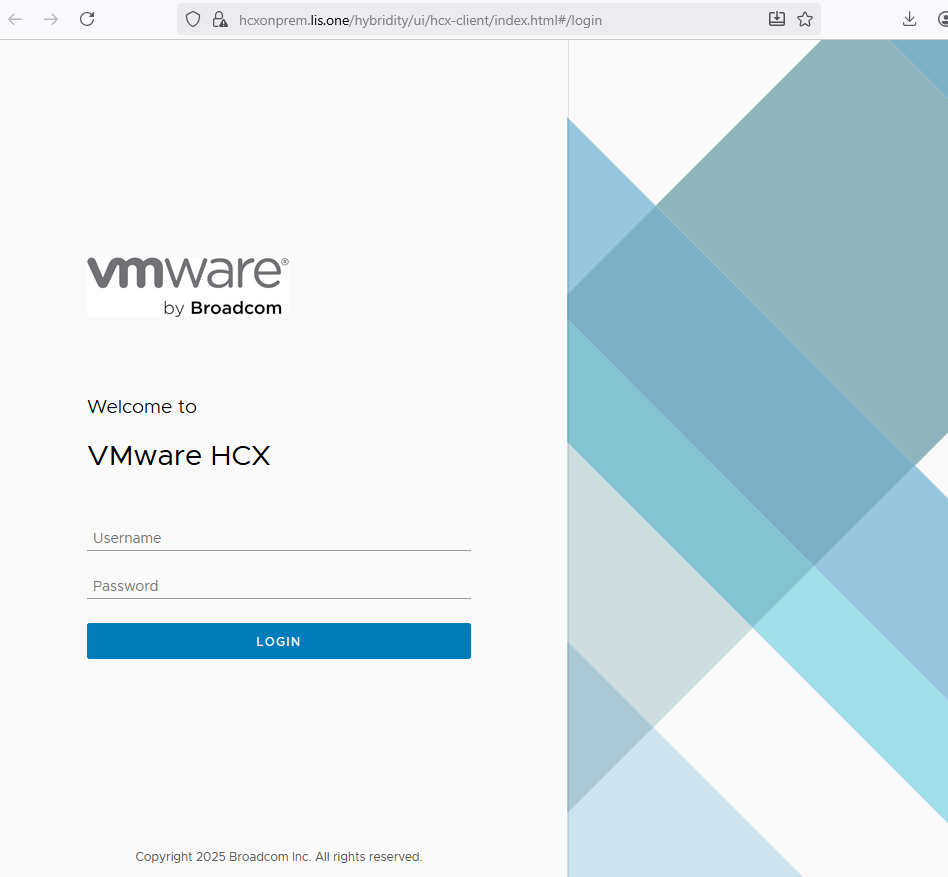
So make sure you’re going to visit the url with the port 9443 at the end 🙂

after logging in with the admin credentials you specified at the ova deployment you will be then greeted with a wizard that will ask you some questions:
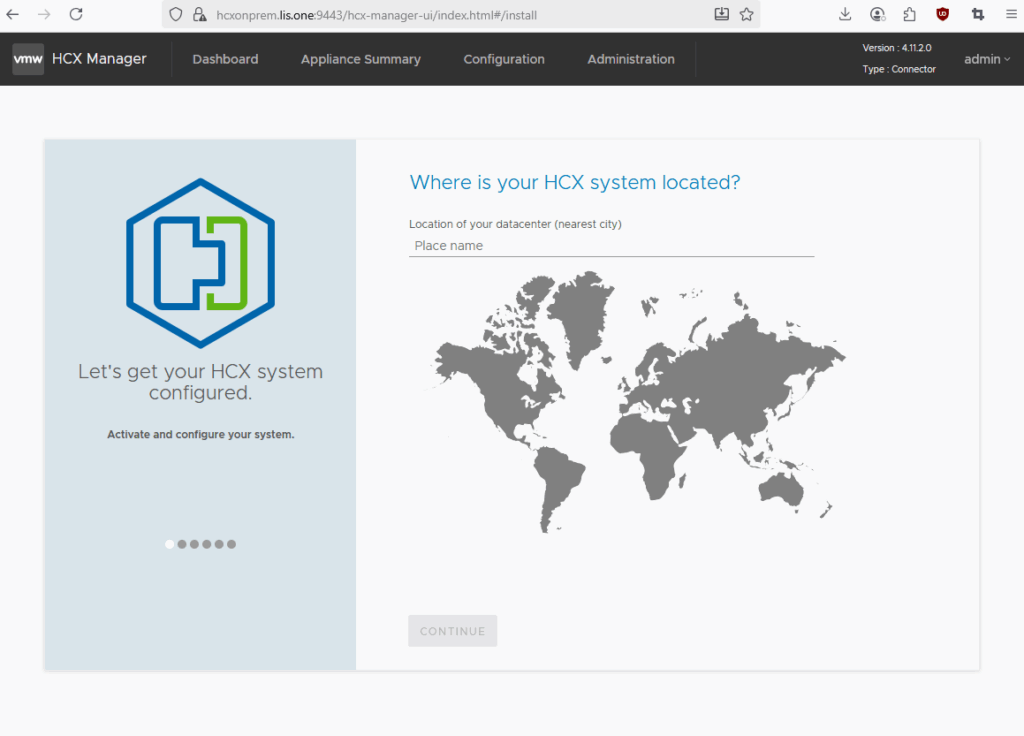
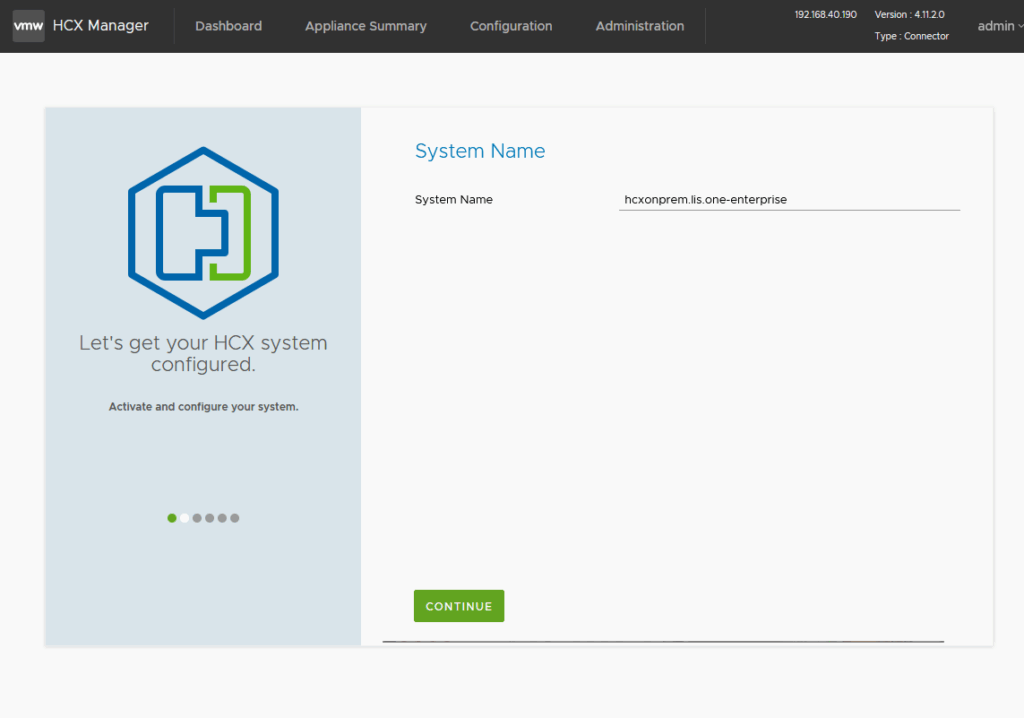
The setup will ask you about the System Name (which should have good names especially in a multi-site setup!)
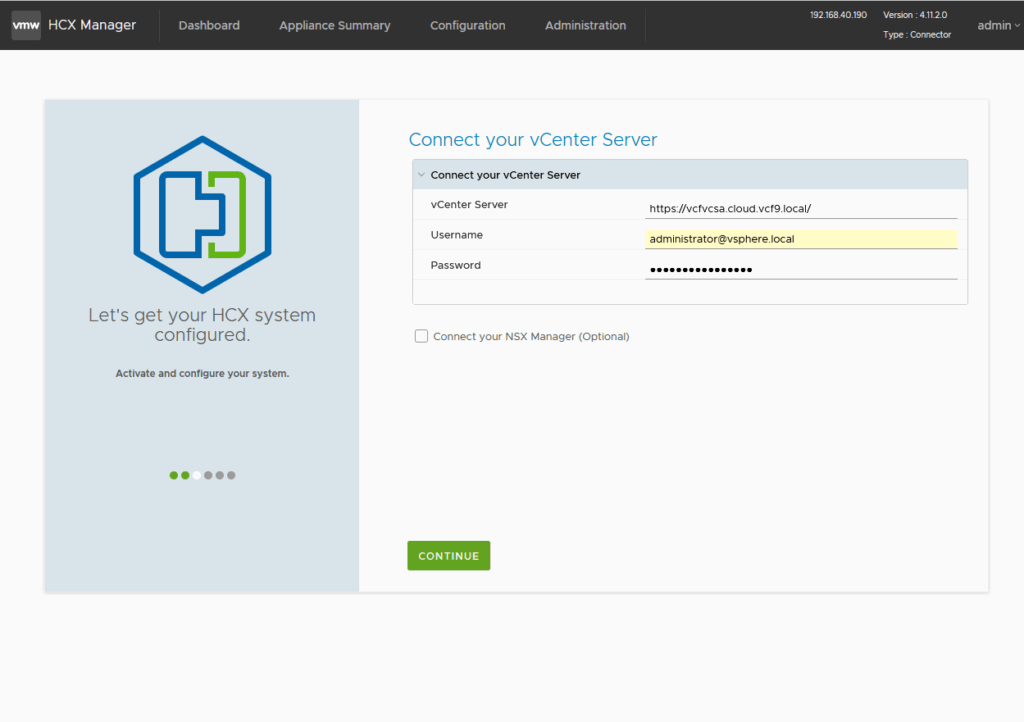
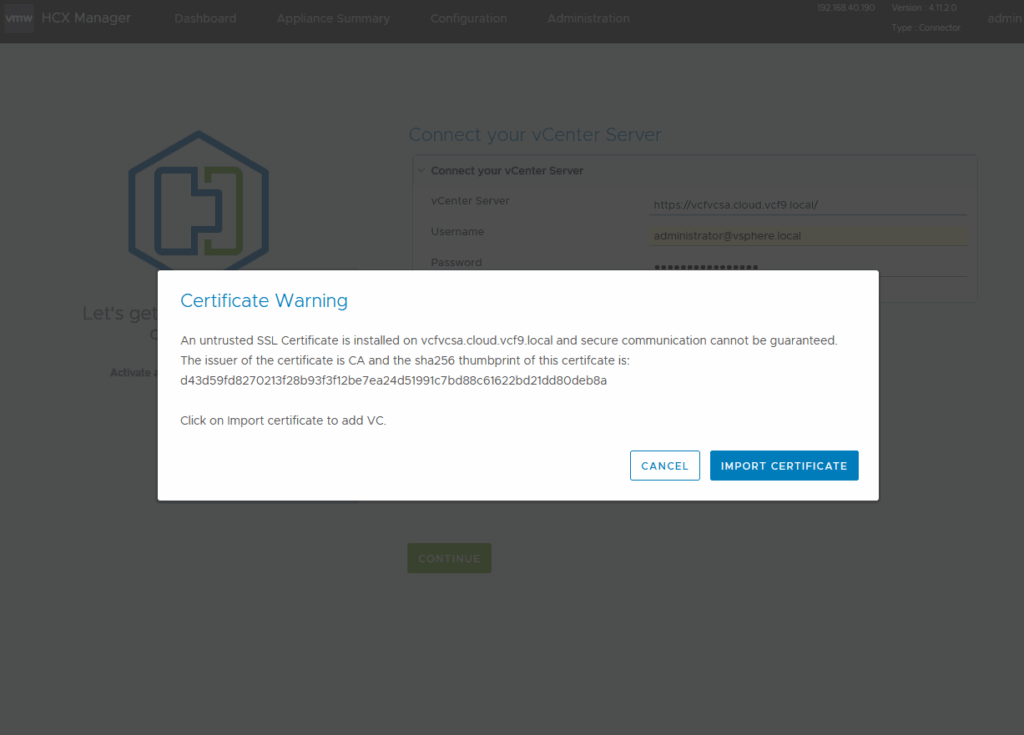
and then we need to setup our vcenter server connection.
First off i want to leverage the setup without adding NSX.
Accept the certificate import
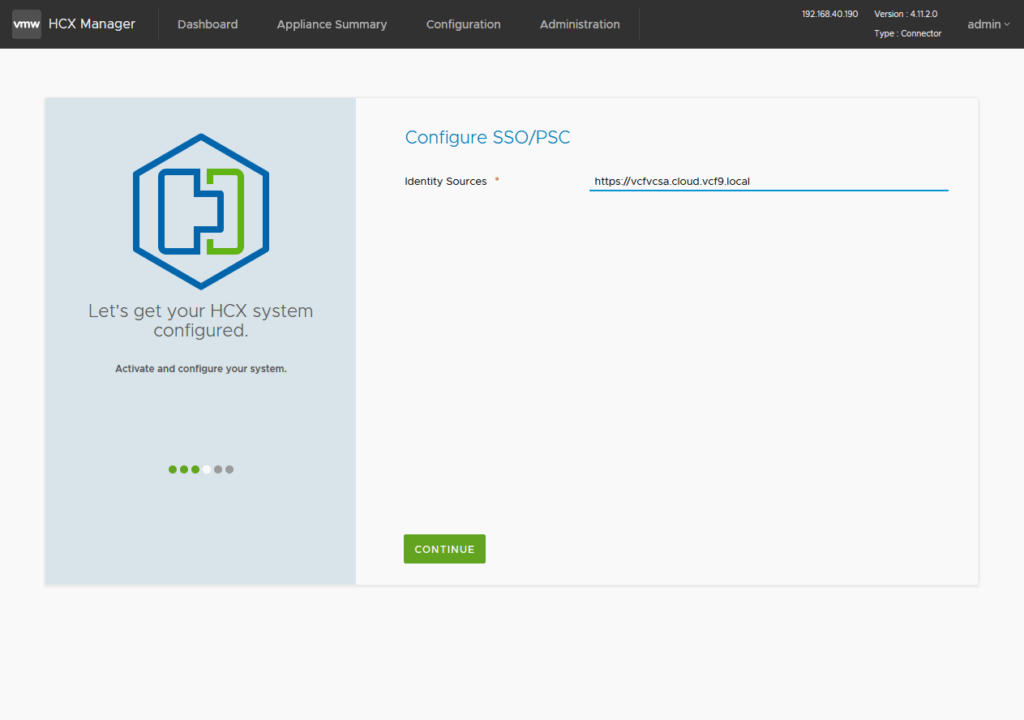
add the SSO Identity Source (mostly the vcenter, but in my case i also used the management vcenter as an embedded VCF SSO Instance)
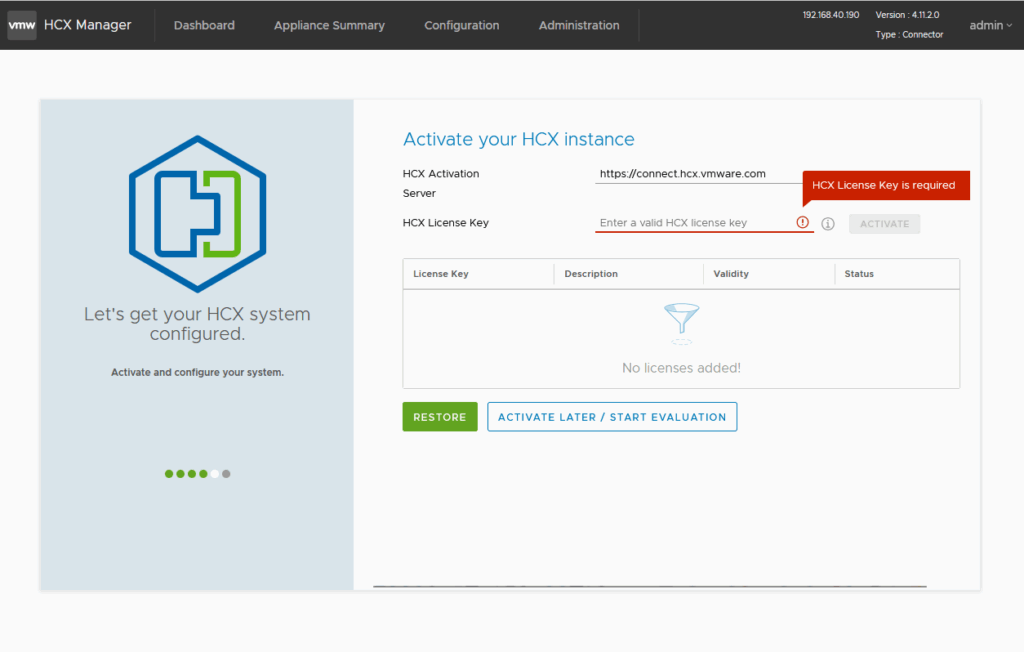
a License key is required, otherwise use the eval 😉 or try entering your NSX Enterprise License Key 😉
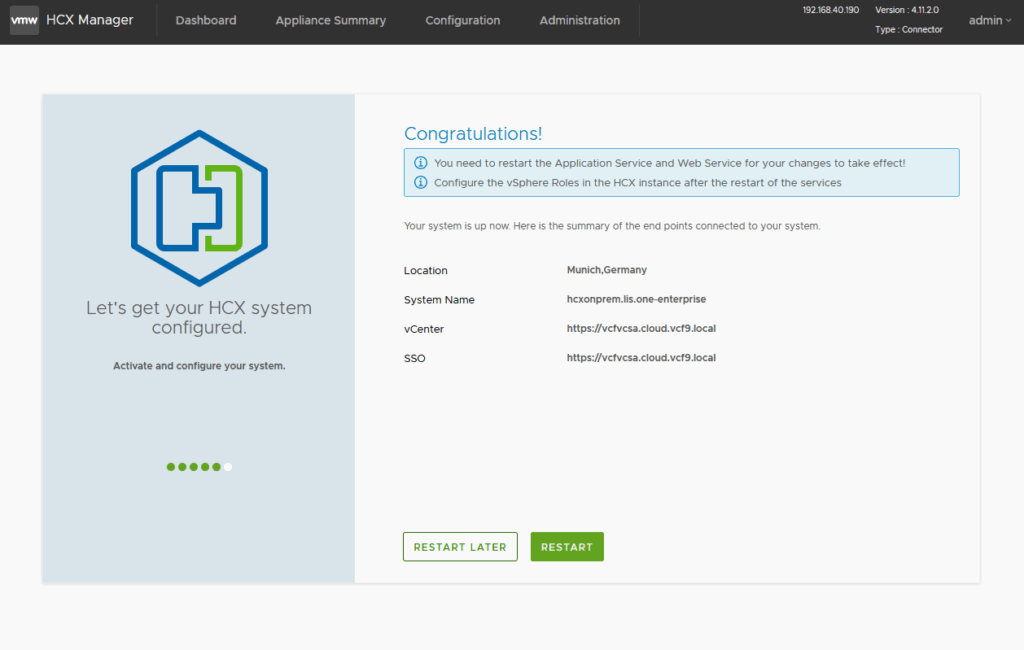
last but not least, a restart to have everything up and running:
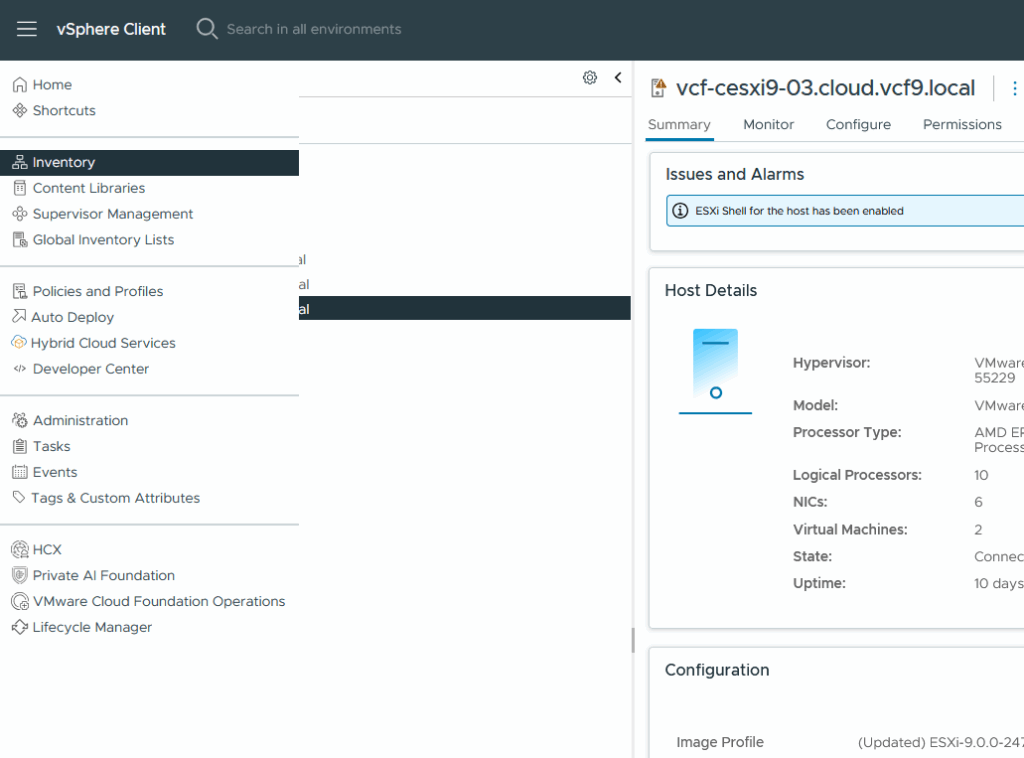
within our VCF9 vCenter we immediately see the HCX plugin:
And after the reboot is done we are able to login over the normal webui with the administrator@vsphere.local:
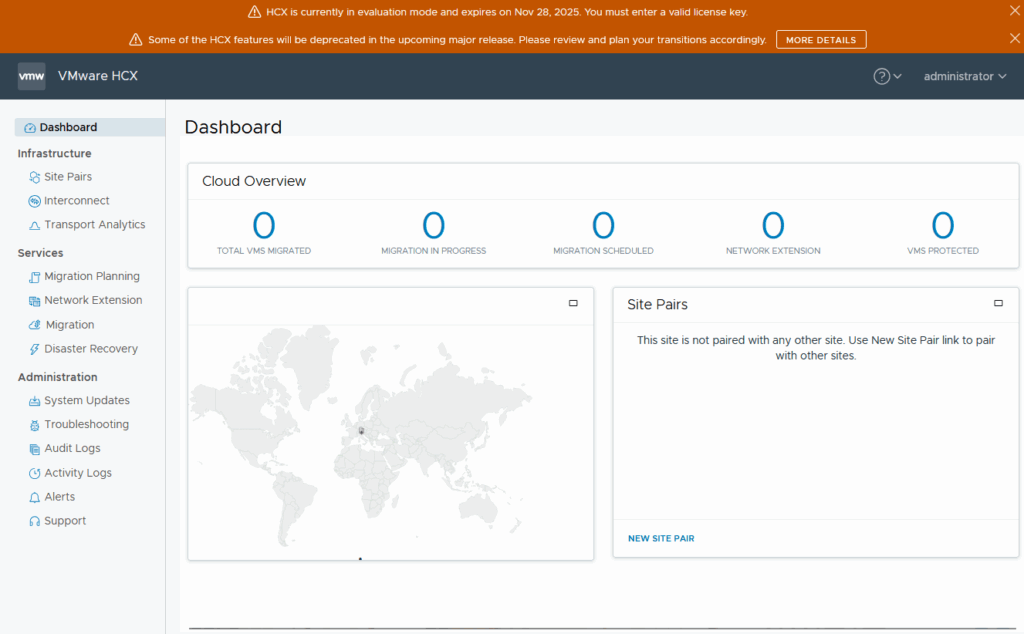
Thats so far for deploying HCX and integrating it into vSphere!
Site Pairing
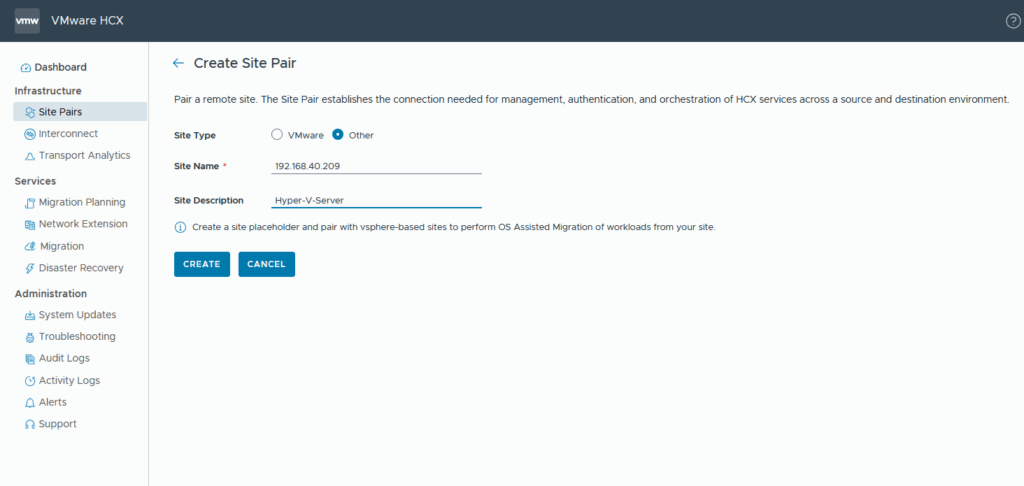
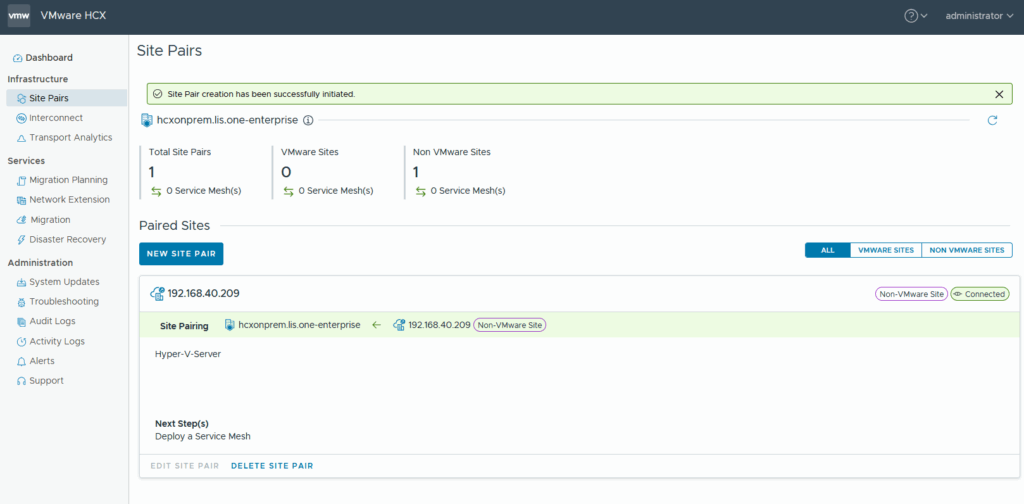
HCX needs a Site Paring so that it knows what the Source and what the Destination is.
The Site Paring for “other” Site Types is simply a placeholder
Preparing the Compute Profile
A Compute Profile “tells” HCX a lot of Information about the environment and therefore we need to create that. Go to interconnect and you will be automatically sent to “create Compute Profile” Tab:

we give it a name
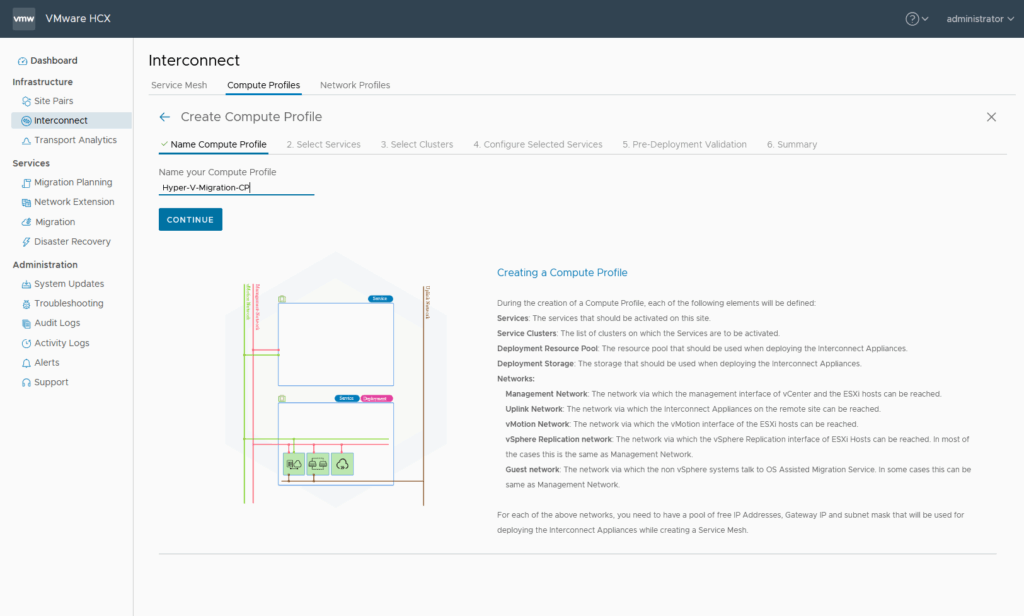
And then we need to select the services that compute profile should be able to do:
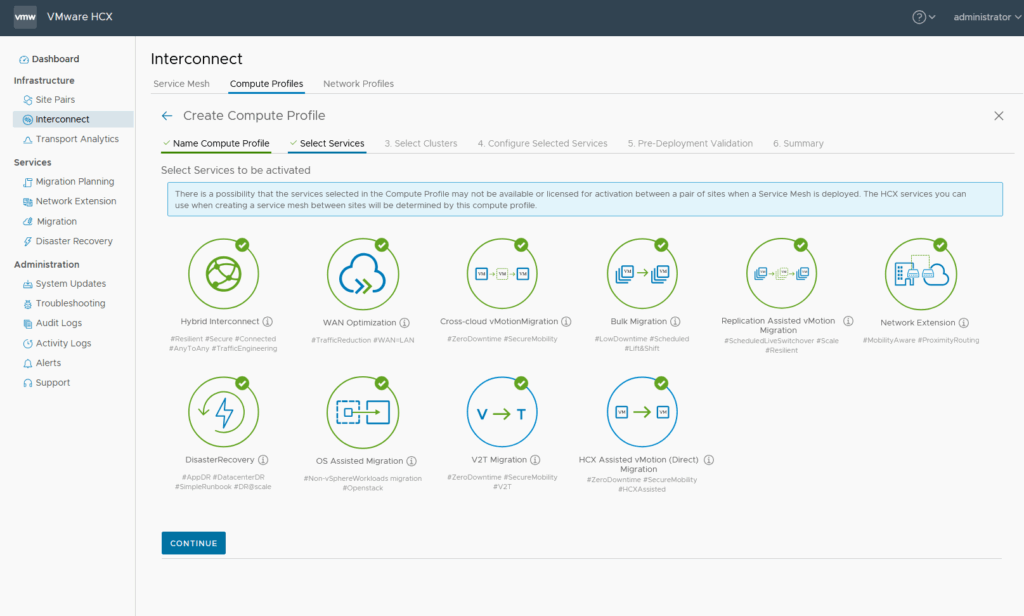
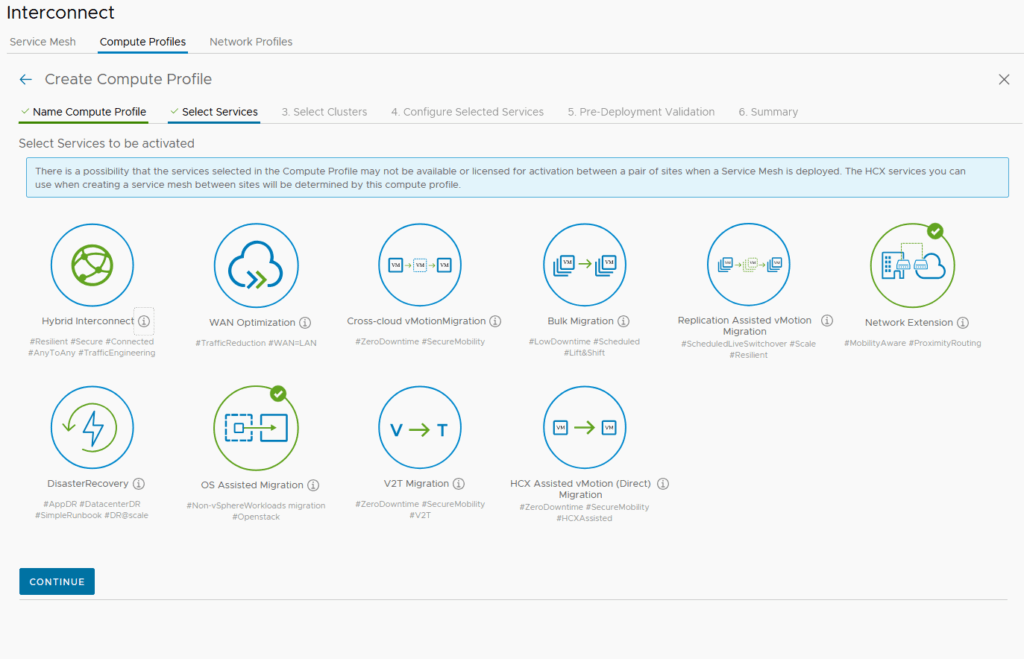
and in the end there isn’t so much needed for our hyper-v migration:
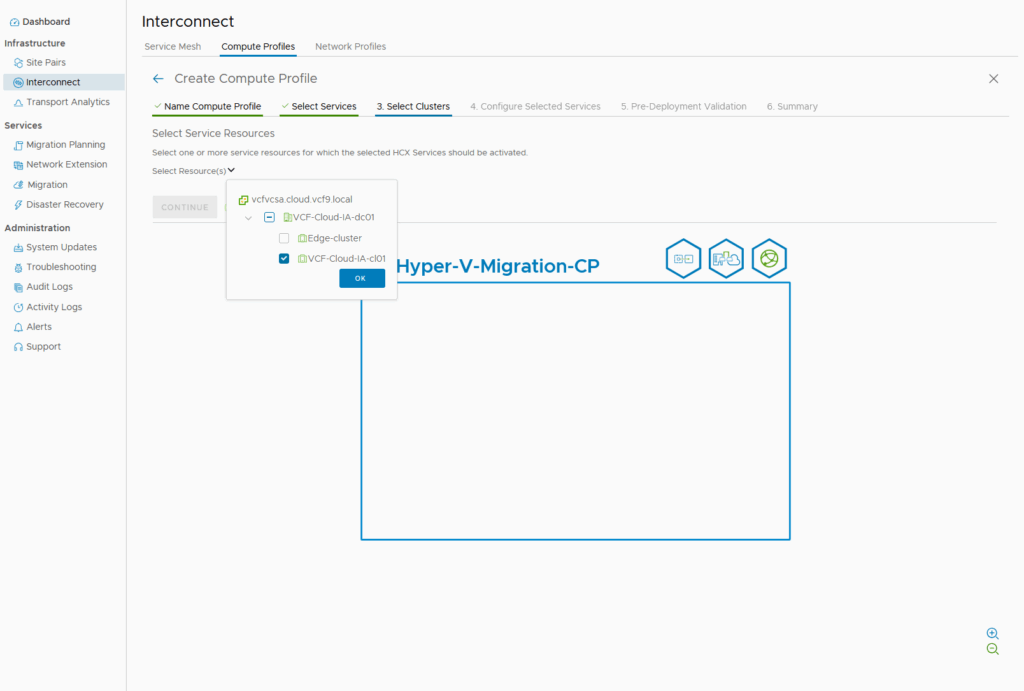
Then we select the Cluster where the HXC Appliances will be deployed always adding something to the blue box
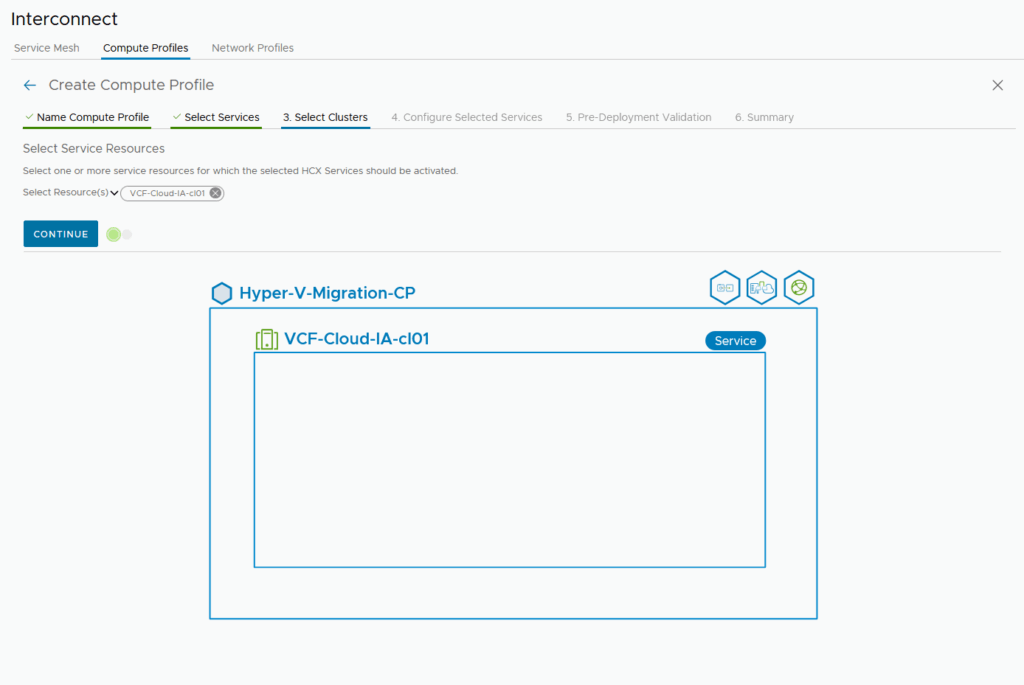
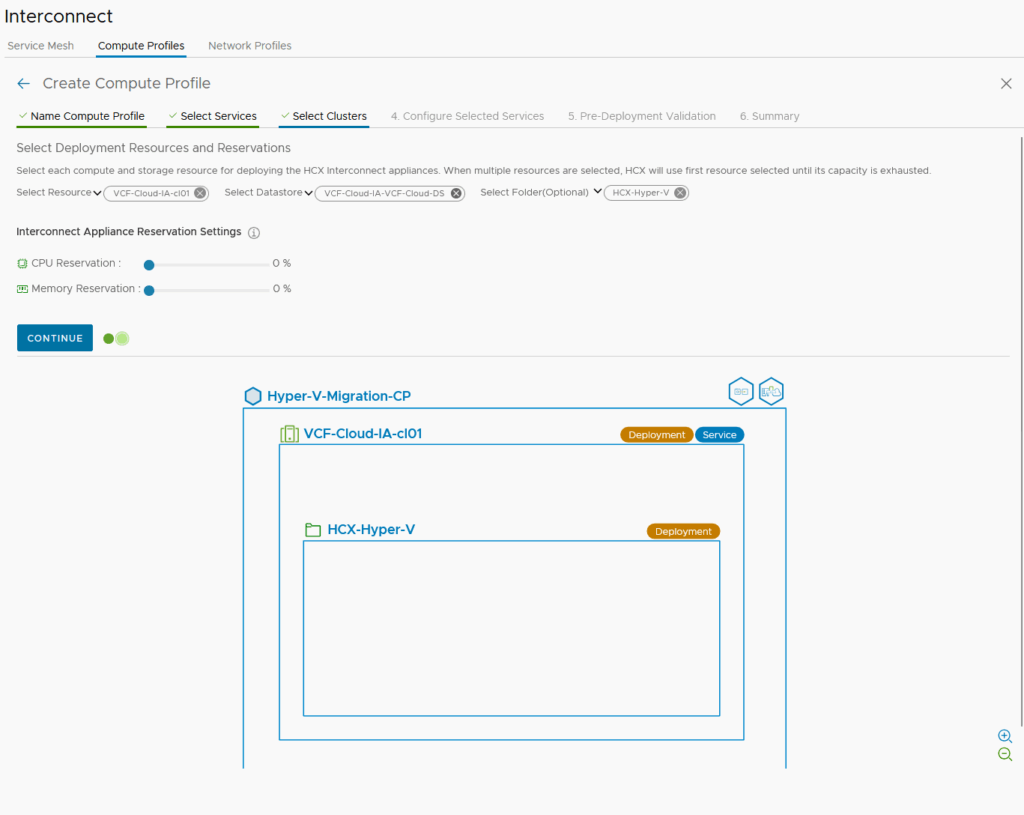
Now we select what target-ressources should be leveraged for the HCX Migration (Compute, Storage, VM-Folder)
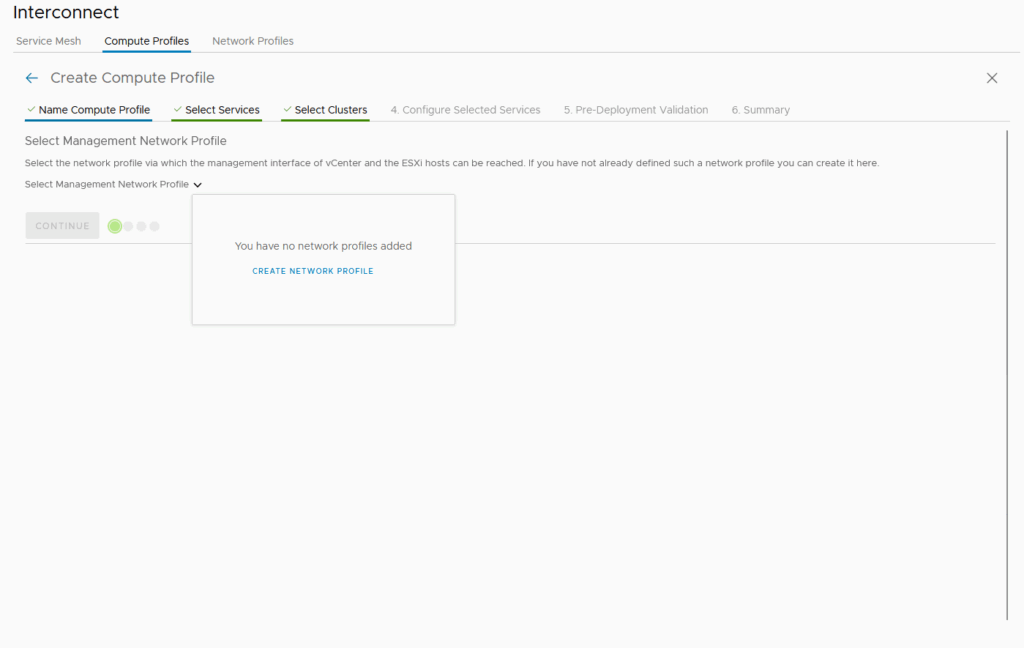
Network Mapping
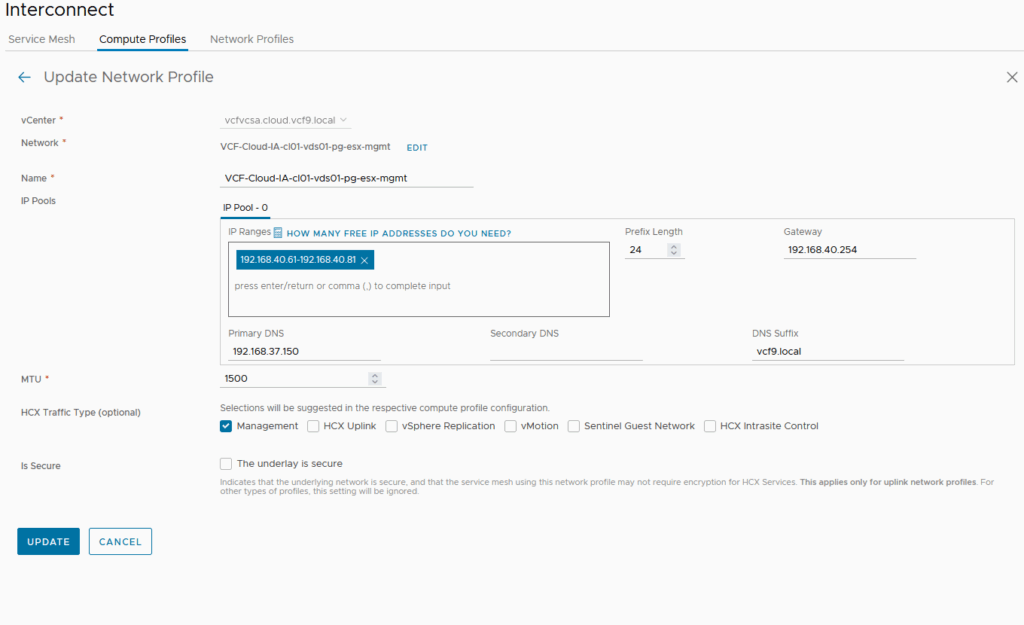
Network mapping is needed to define what roles the networks/portgroup/vlans have within the target.
We will need to define the management network and for the OS Assistet Migration a Guest Network.
First we create the management network by hitting “CREATE NETWORK PROFILE”.
In my case the esxi and vm-management shares the same vlan id which makes firewalling easy as the HCX appliances needs to be able to connect to the ESXi and vCenter.
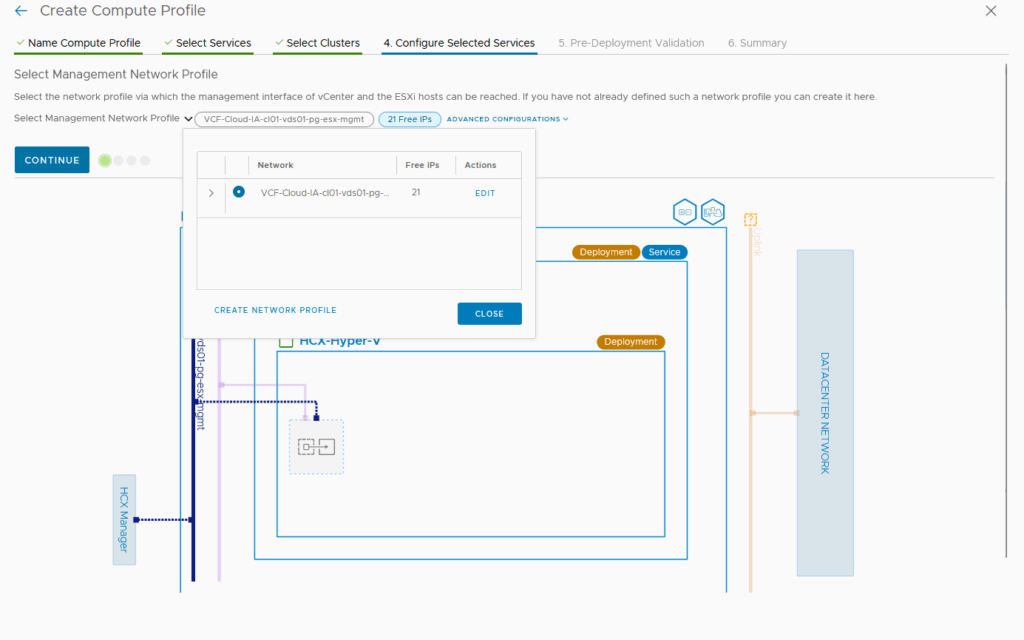
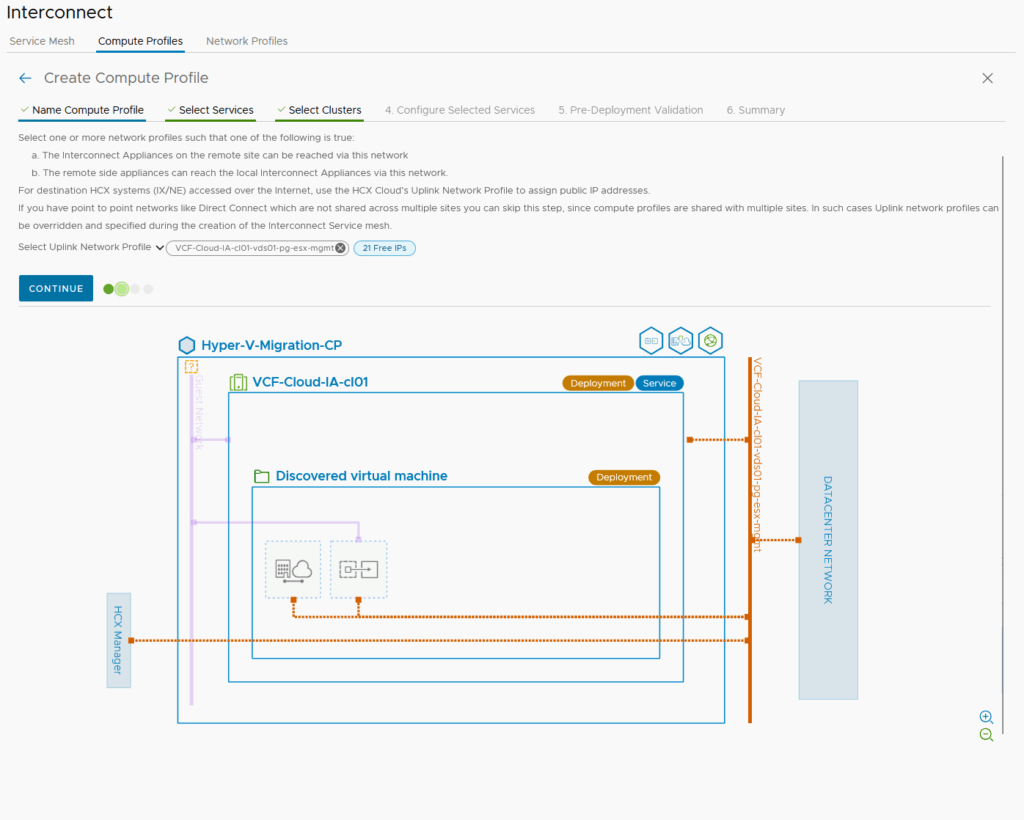
The Uplink Network Profile defines the WAN Access for the HCX Appliances which is necessary for mutli-site configuration
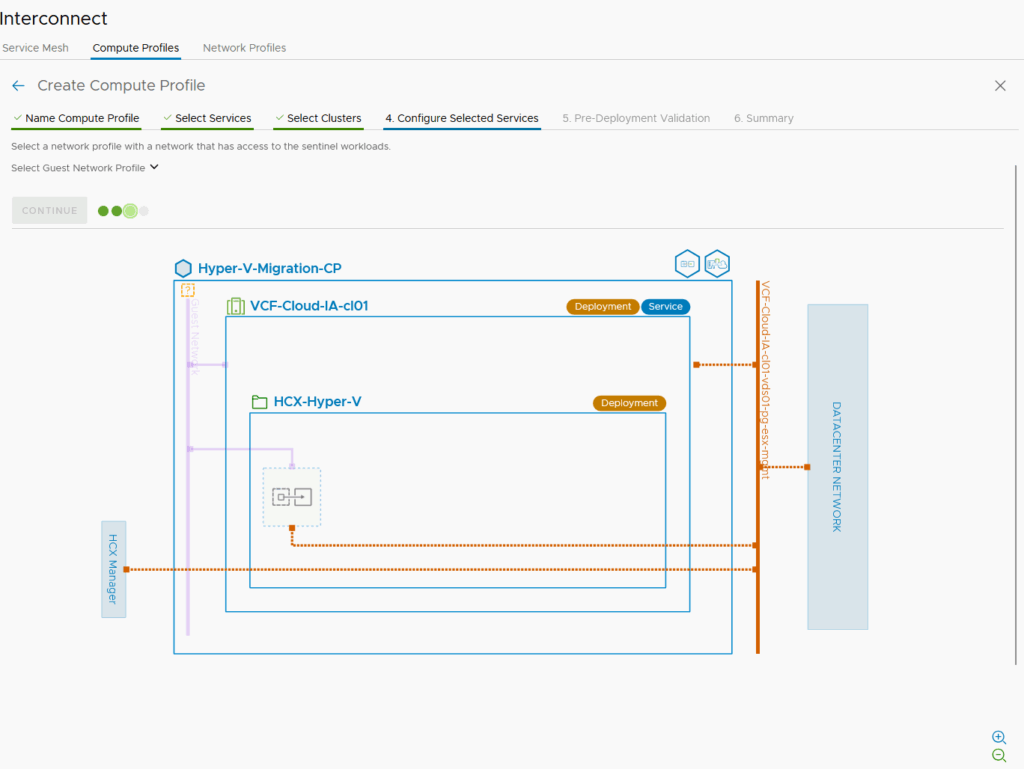
The Sentinel or Guest OS Network:
If you define that network you will simply give the sentinel appliance a leg into the Guest-OS network so that it can reach the Sentinel Appliance to transfer/convert the Guest (Or do you want to go trough the routing/firewalls from Guest-OS Network to Sentinel Appliance Management?).
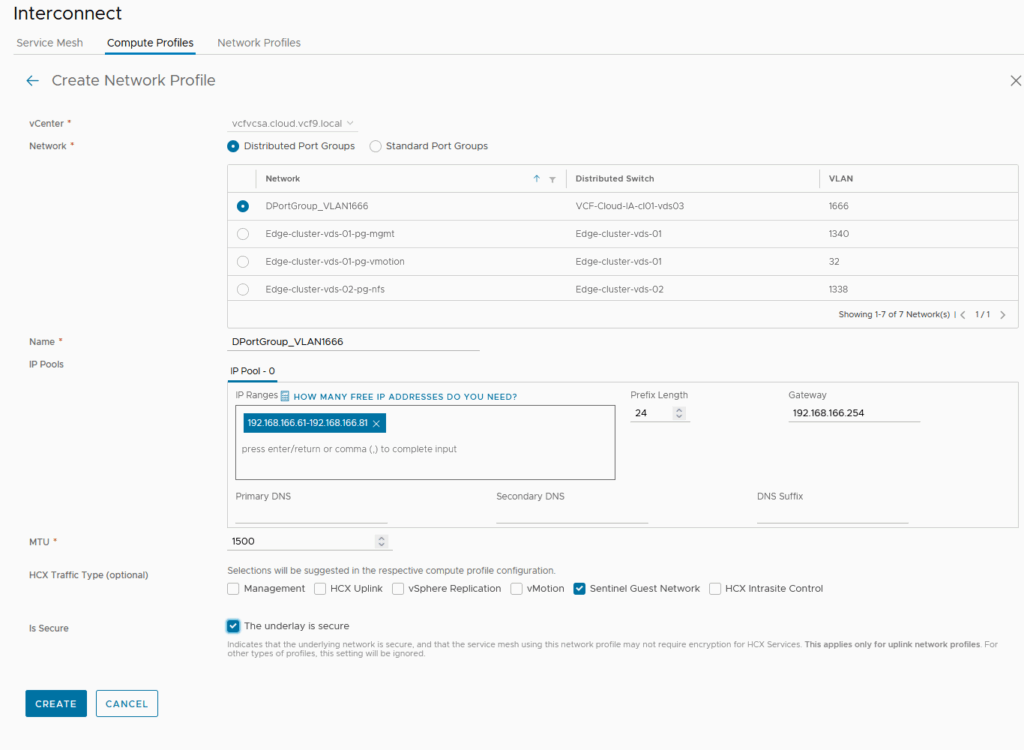
Now we need to map the Virtual Switch VLAN 1666 from Hyper V to a Portgroup within vSphere which (ideally) also runs with VLAN 1666.
We map the Portgroup with VLAN 1666 to our Sentinel Guest Network and define the range. Also notice that set that network Profile to “secure”. No encryption means more CPU Power 🙂
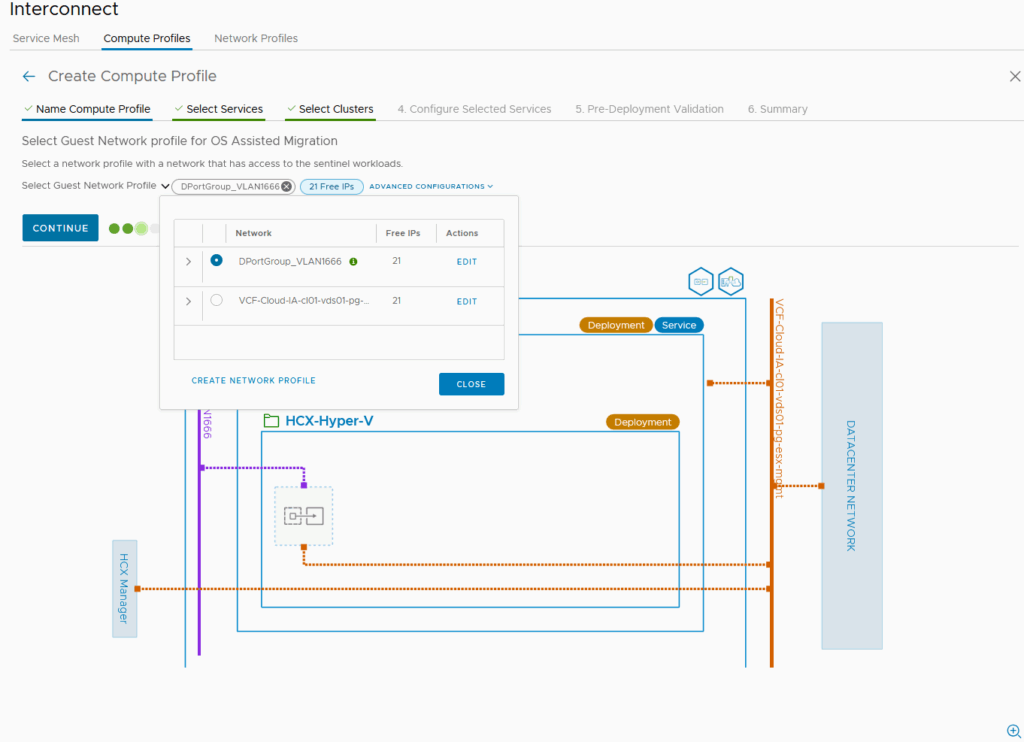
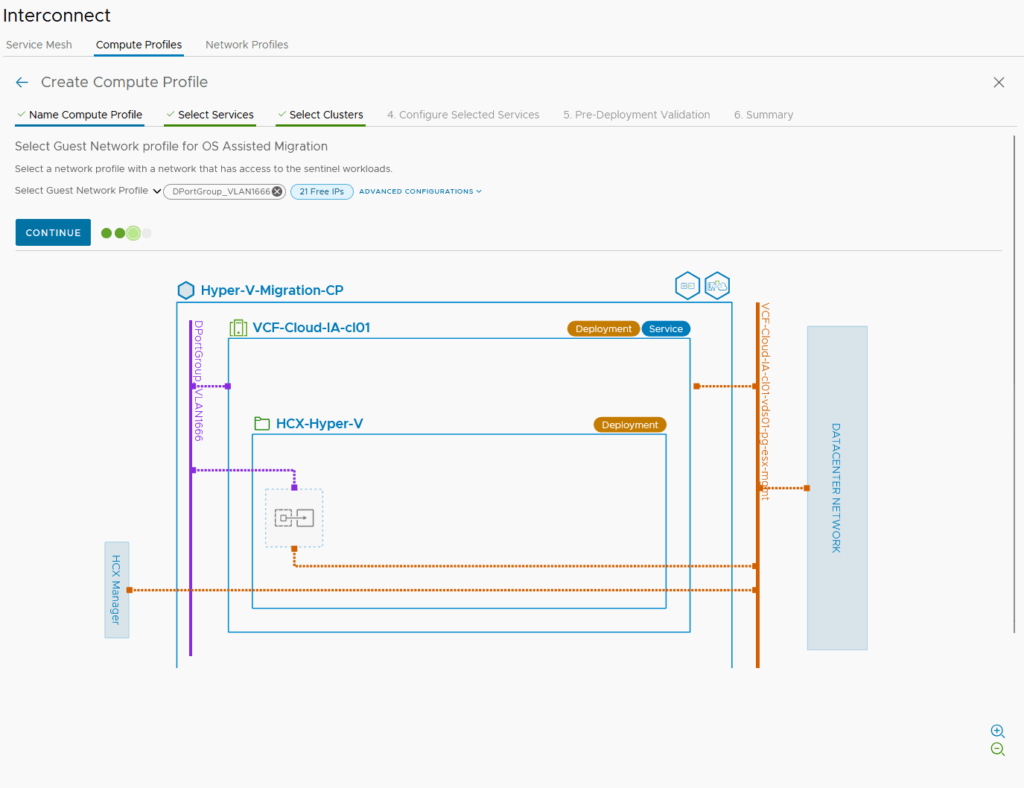
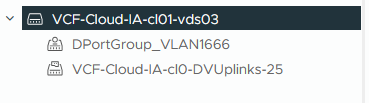
The last step is to define the VDS which is used for the Layer 2 Network Extension. Obviously we want to select the DVS which holds the VLAN 1666 Portgroup
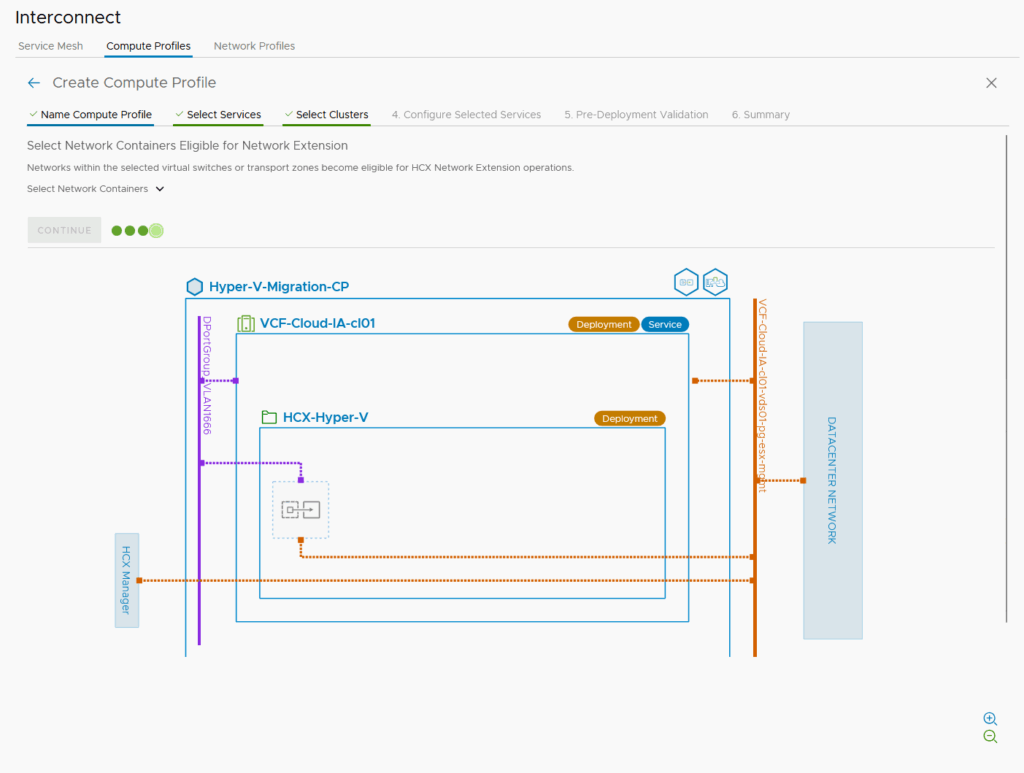
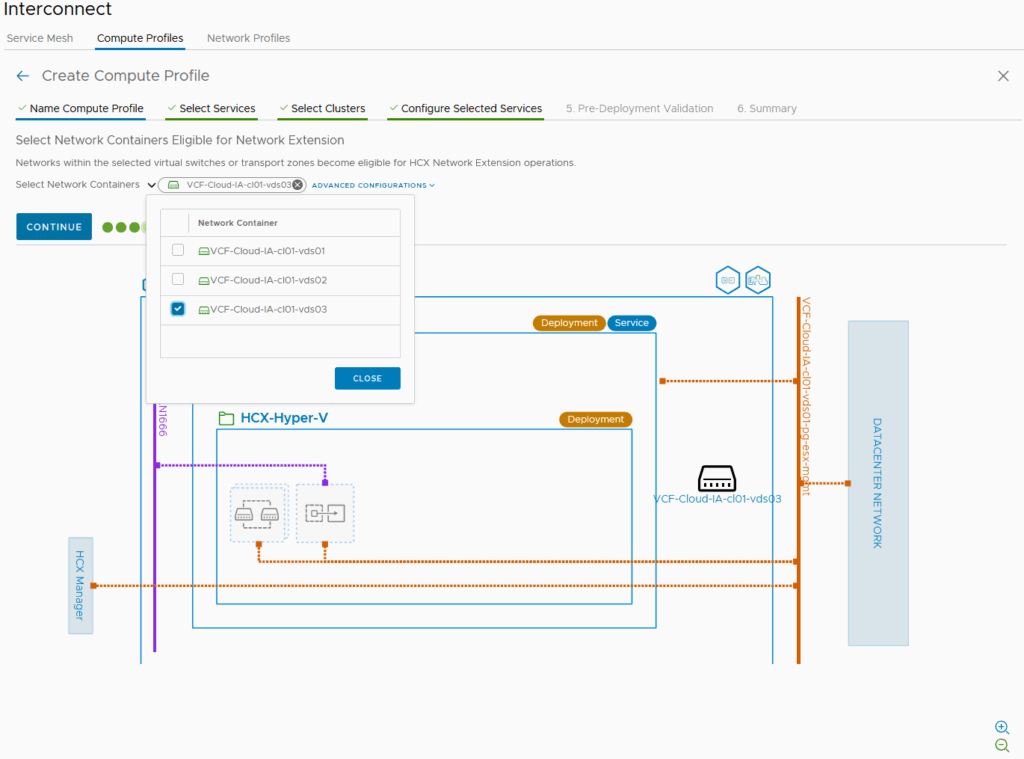
In the end we get firewall rules displayed and after continue we finish it:
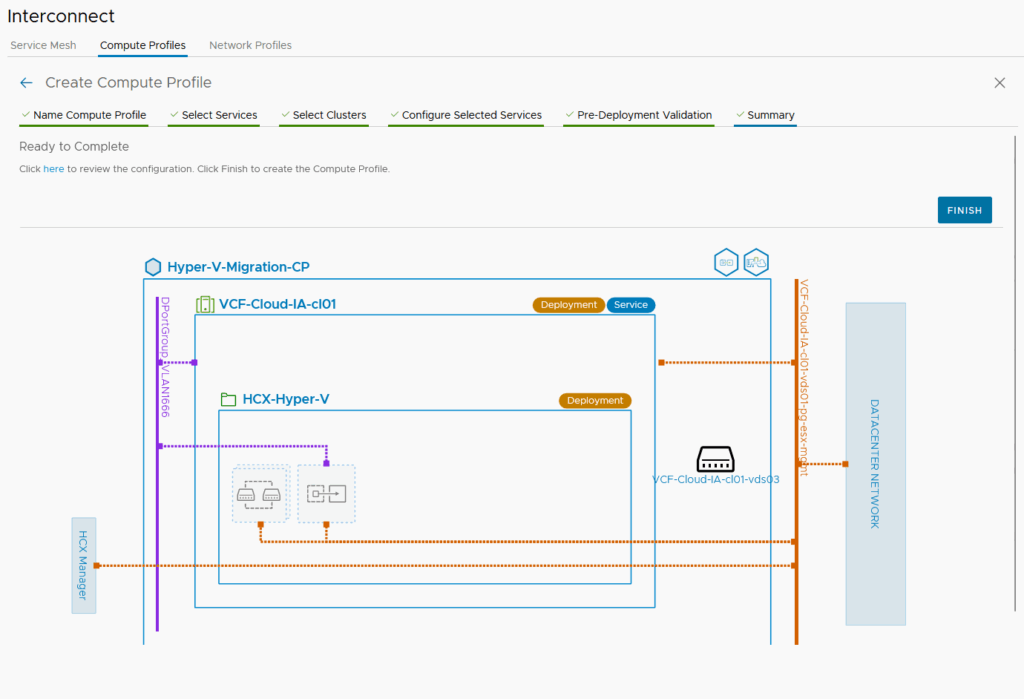
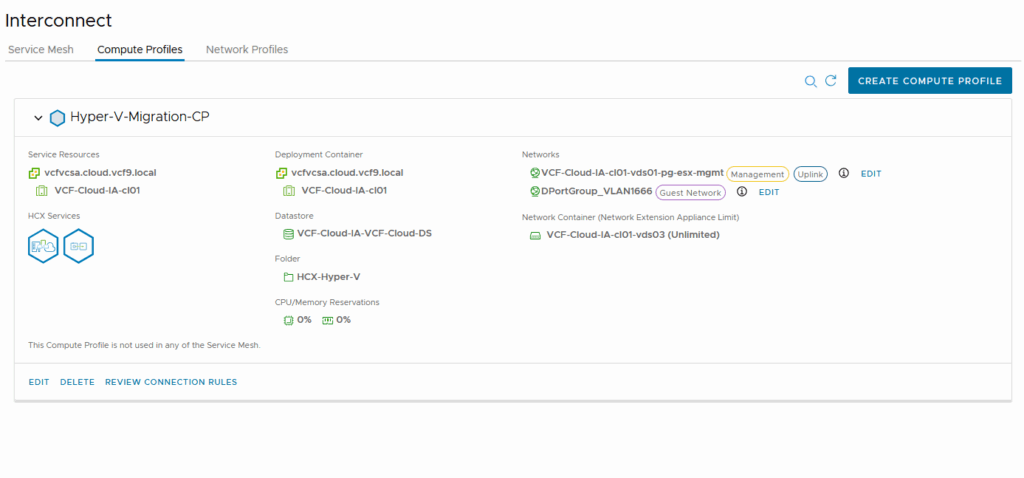
So the compure profile is created, what now?
The Service mesh
With the Site-Paring done, the compute profile and network profiles which we created can be used by the Servicemesh.
This defines the roles between the pairs and for what migration types they could be used (in case you selected everything)
We start with clicking on the blue button:
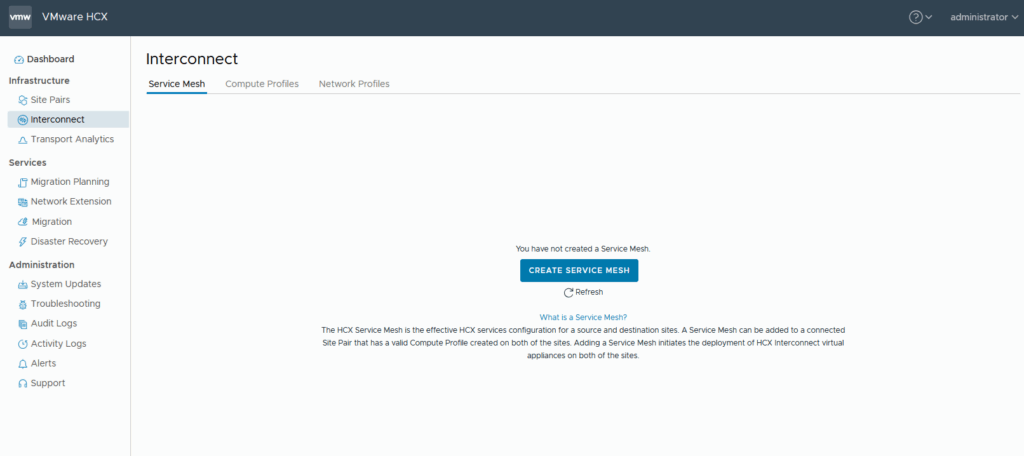
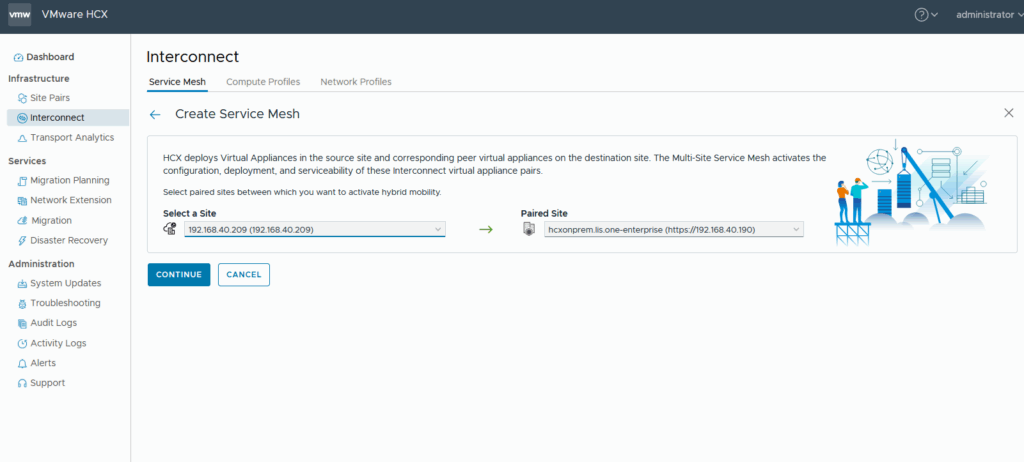
you might be wondering about the error first, but since we define the source and target here, the “other” site needs to be on the left site.
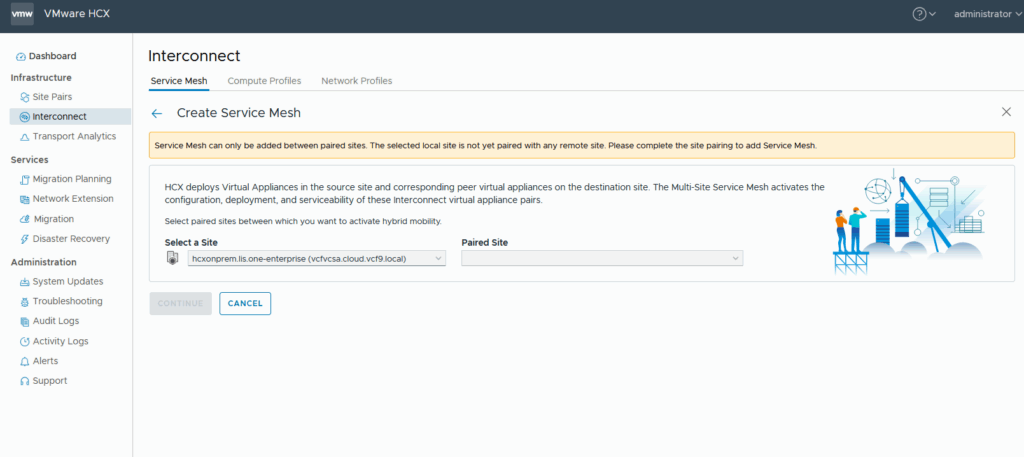
now it will be working 🙂
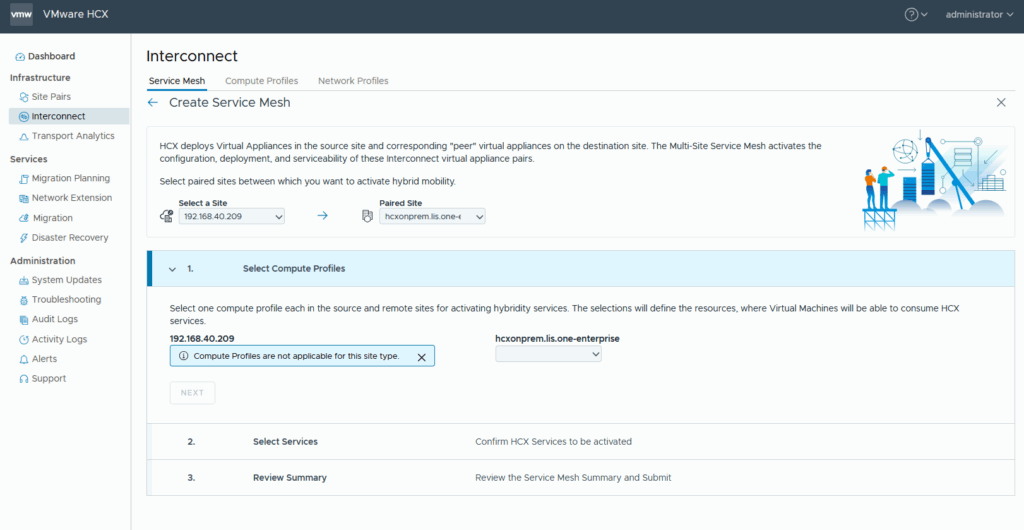
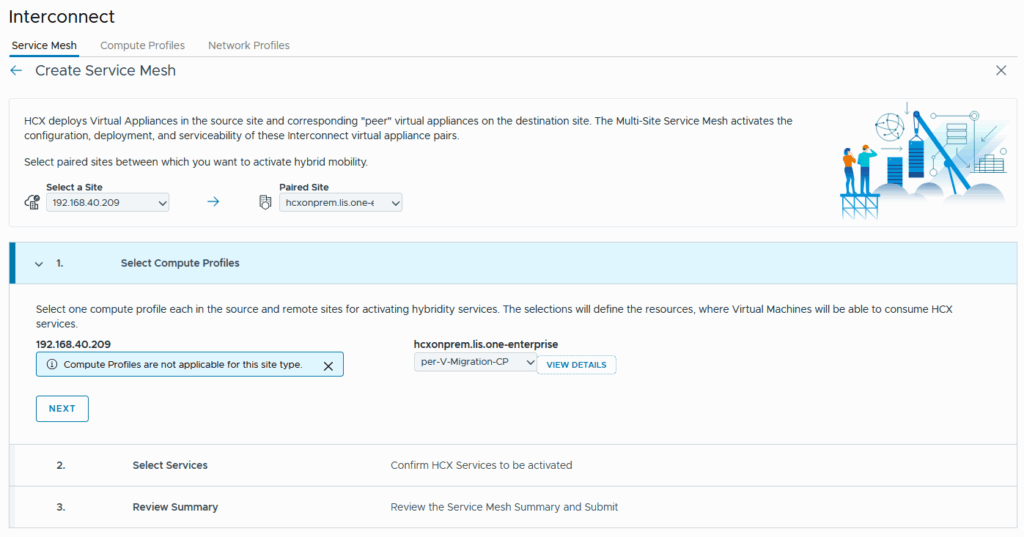
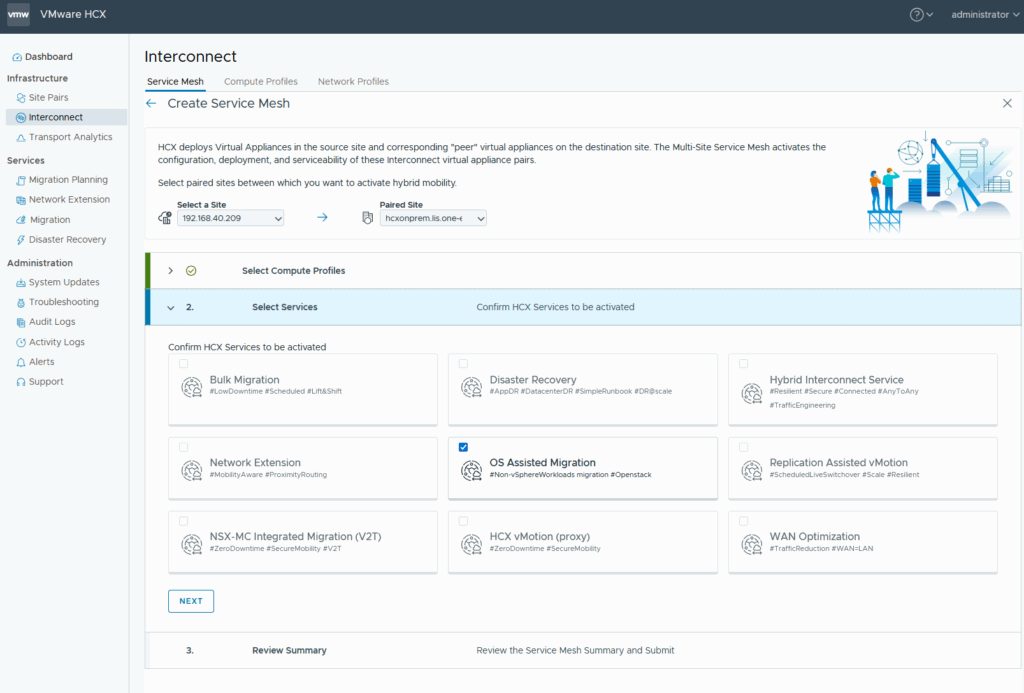
The wizard. Select the compute Profile for our target vsphere cluster
OS assisted migration is already selected
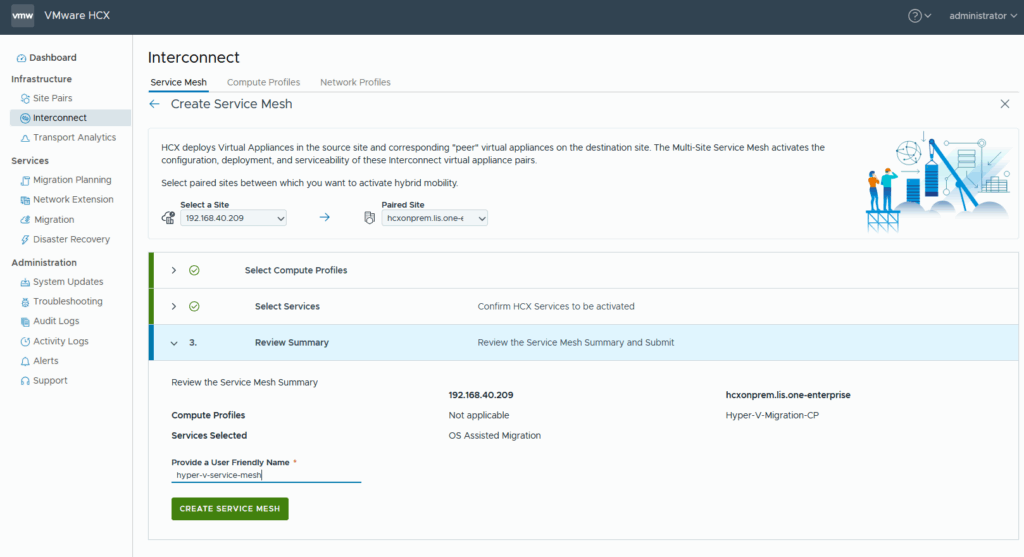
give it a nice name and it will be created:
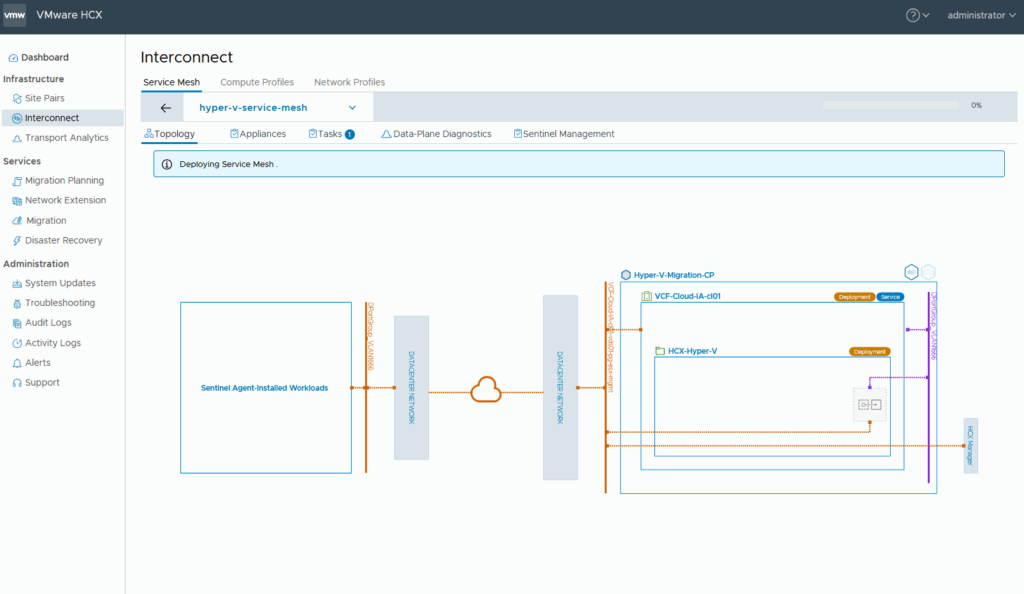
HCX while creating the Servicemesh:
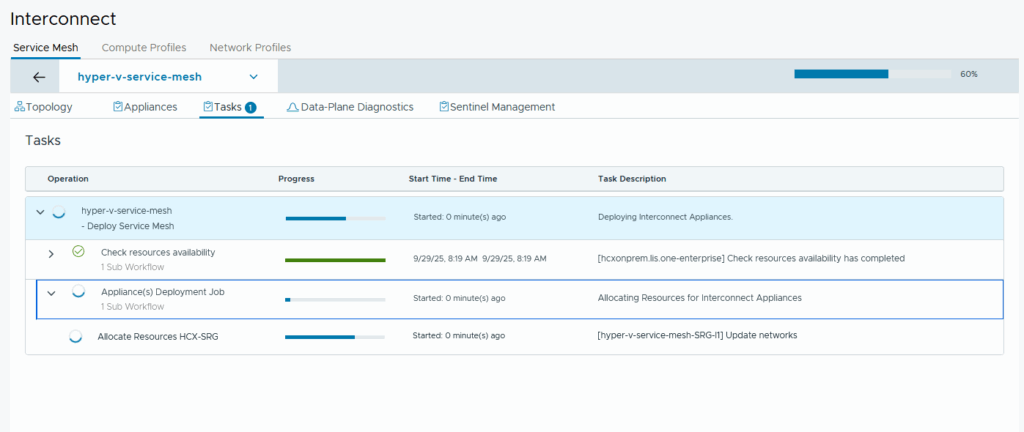
and after a short while the VMs are appearing within the target vcenter:
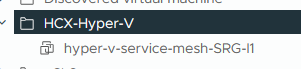
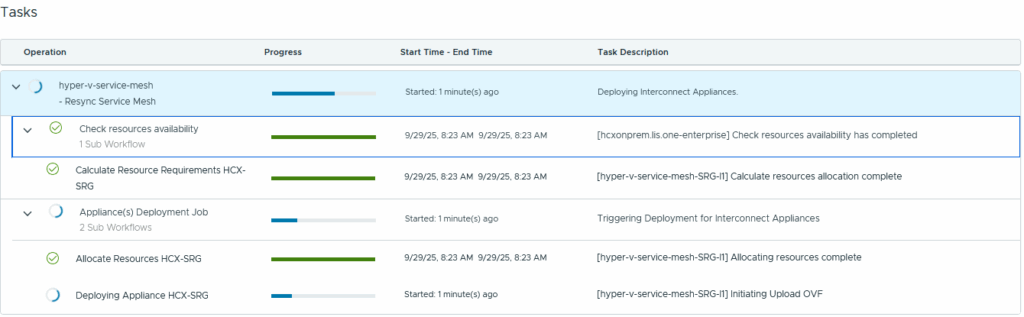
Take a coffee since that service mesh deployment might take a while 😉
Sentinel Management
Since we want to migrate from a non-vSphere Site or plattform we will need some magic that enables us to migrate guest-vms from the hyper-v Server and that is why we have the sentinel appliance.
Here we are able to download the packages for our supported Linux/ and Windows VMs.
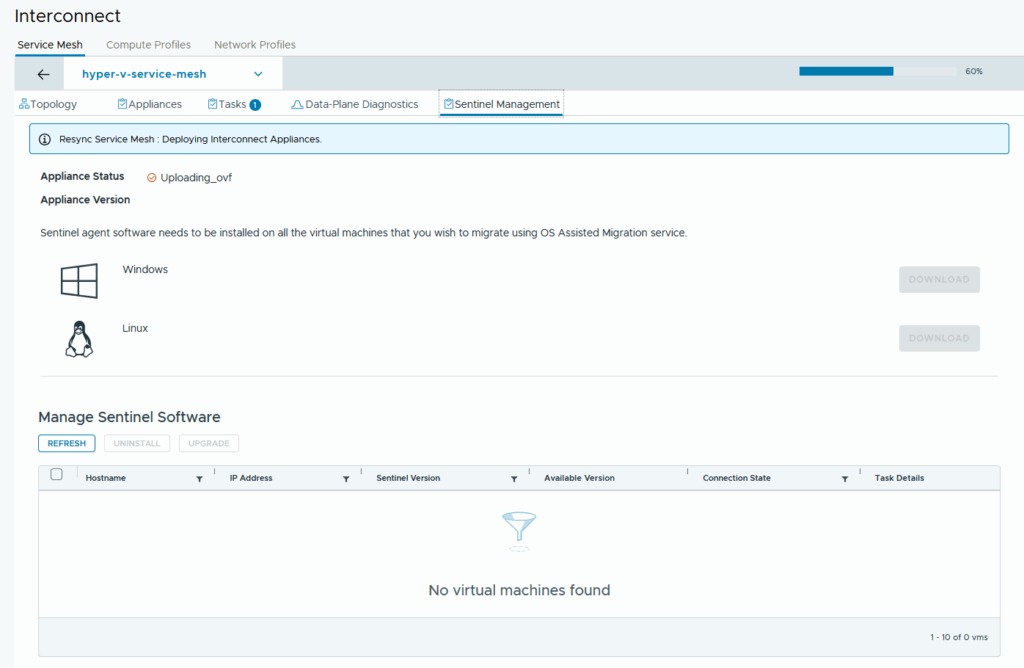
After the service mesh is created we are able to download the agents so that they can be installed on the operating systems:
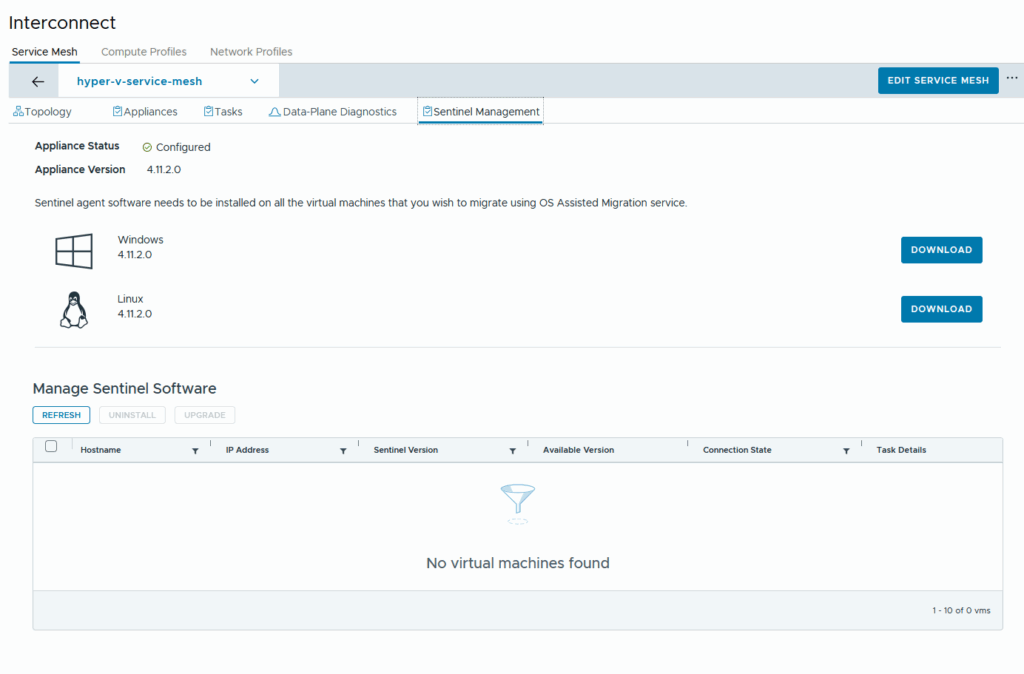
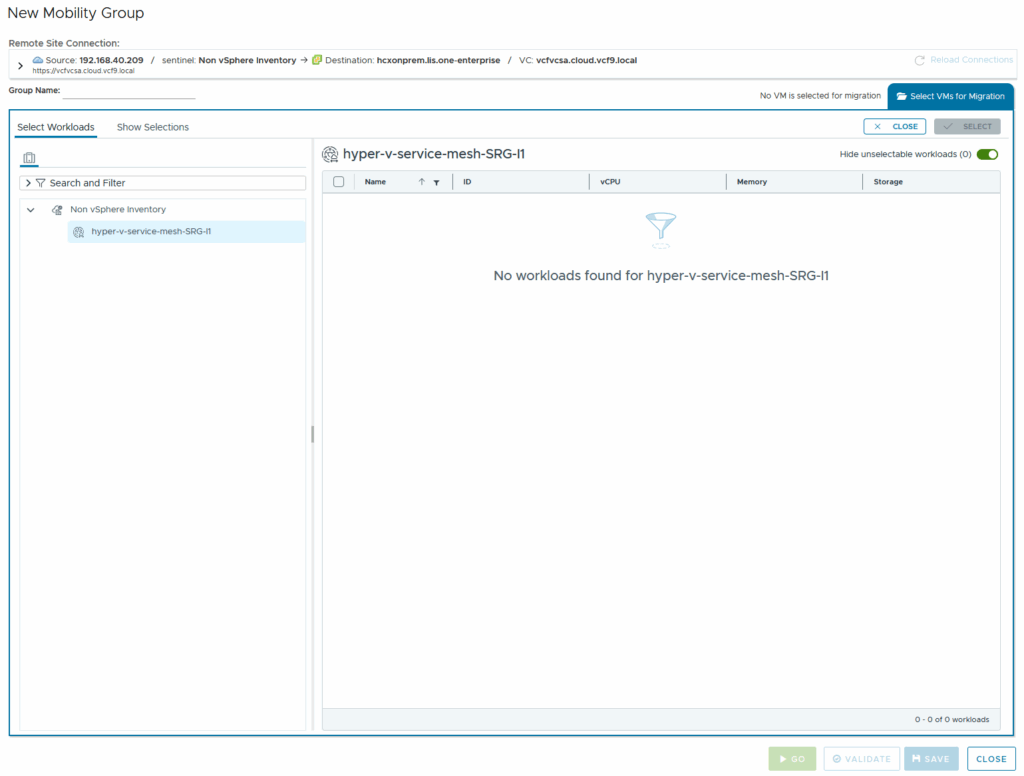
Without the software no VMs will be shown to migrate:
Installing the sentinel software in the guest os
Since we can’t leverage vMotion, Storage vMotion or vSphere Replication within Hyper-V we need some Agents that will help with the transfer of data and thats where the downloaded packages coming in…
Windows Agent
First off, obviously the Windows Guest VM will need to reach our sentinel appliance! If the agent can’t communicate with it we won’t be able to schedule/plan migrations, so keep that in sense.
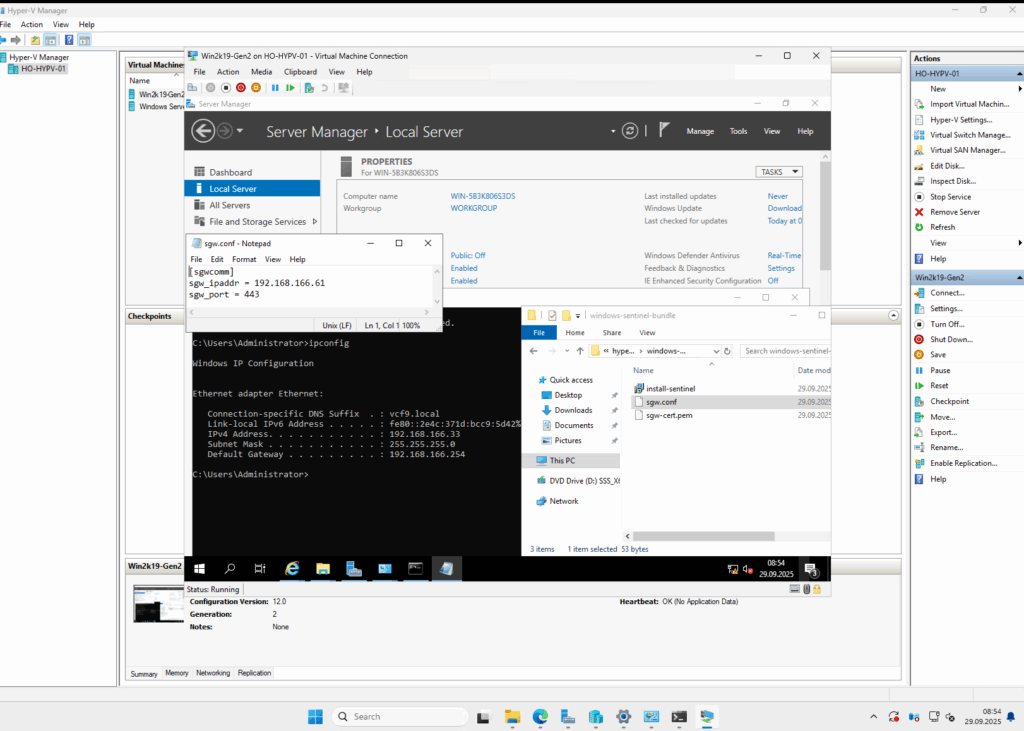
So in the next screenshot you will se my Hyper-V Manager along with the “Win2k19-Gen2” VM running while it has tons of windows open.
We see the ip-address of the VM, the sentinel software along with config-files that simply shows the sentinel manager ip and port that will be used and the hostname (which will be fine in the next screenshot 😉 )
Obviously we are going to start with the setup which is some pretty simple next, next, i Agree, next, next, finish stuff.
Unfortunately it is an .exe file and i haven’t been able to see if there is a “quiet” mode as the config file definitely gets loaded automatically if it is in the same folder i assume.
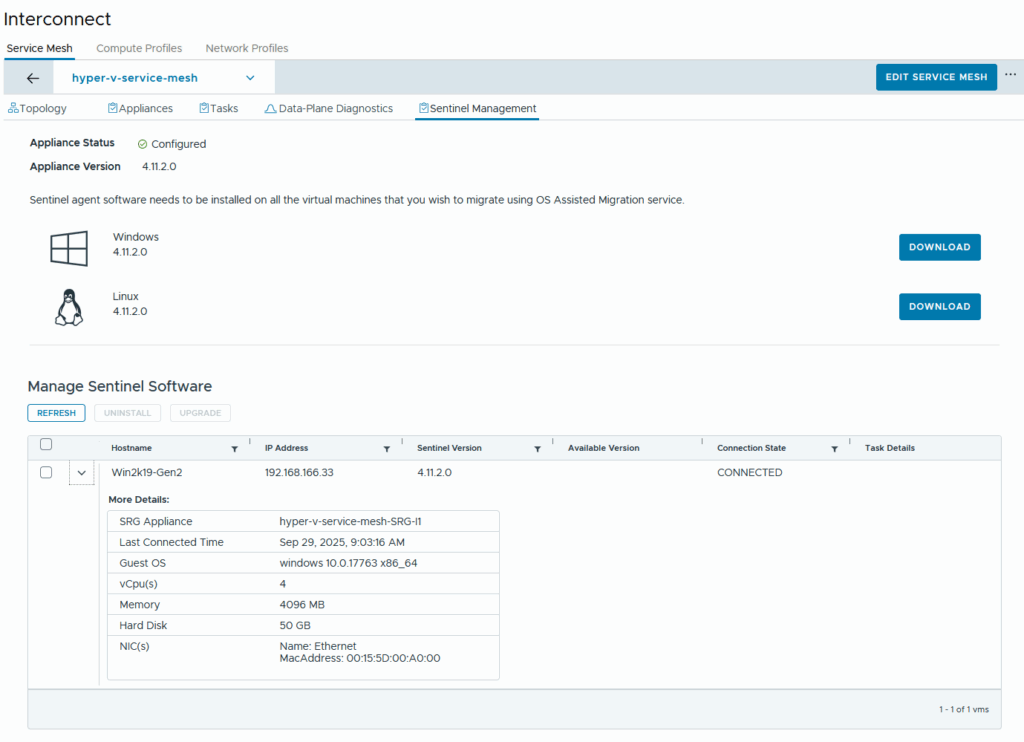
But if everything is setup correctly you will be greeted with a new virtual machine in HCX or rather in the sentinel appliances overview:
Migration of a Hyper-V VM to VCF9
After all the preparation we are finally able to see our Hyper-V VM in the HCX Migration section
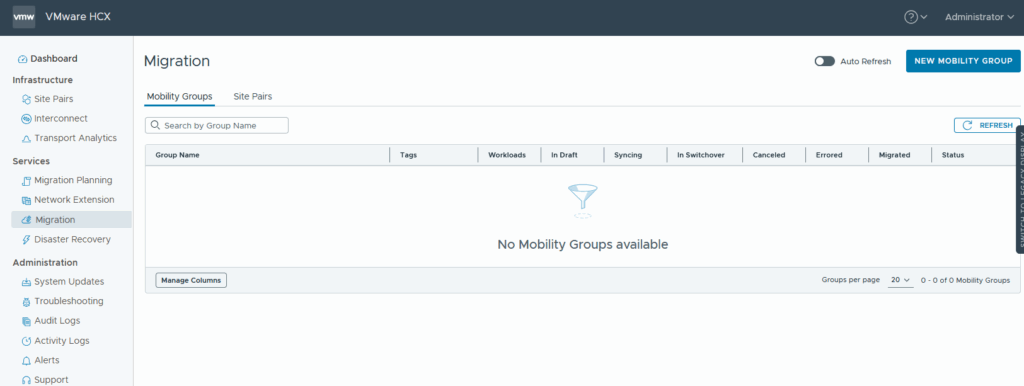
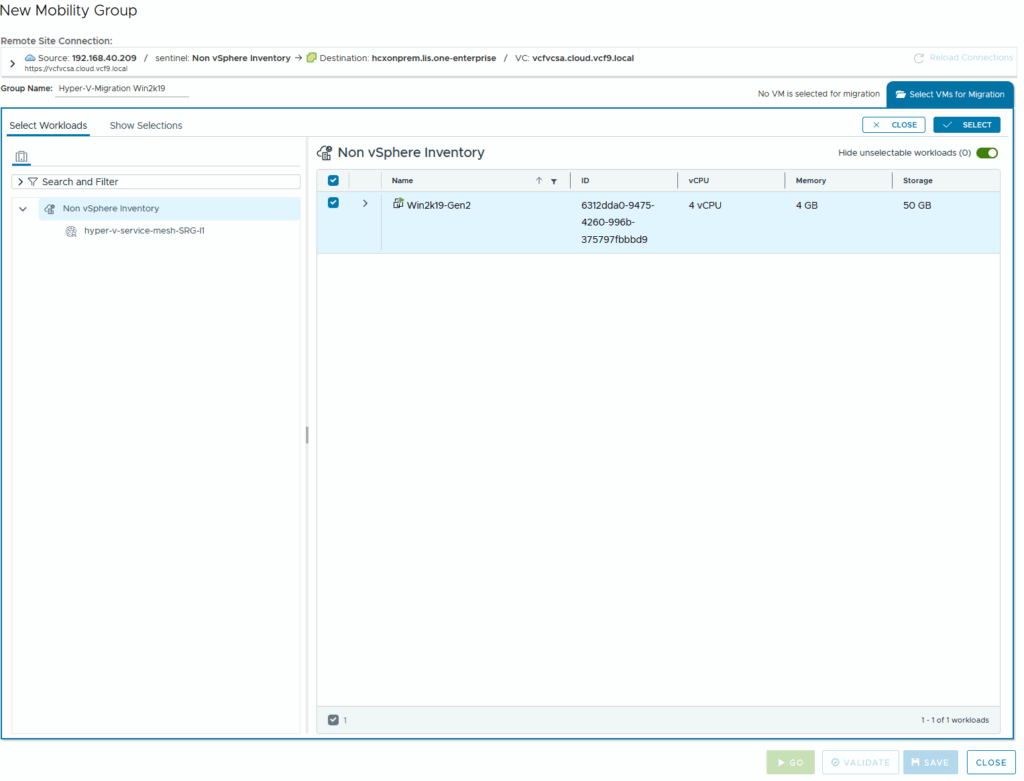
We click on New Mobility Group, give it a name and select (the blue button upper right corner) our Win2k19-Gen2 VM from the non vSphere Inventory
if you’re familiar with HCX Migrations you will be knowing the next window.
Select where the VM should be migrated to and check the other options aswell!
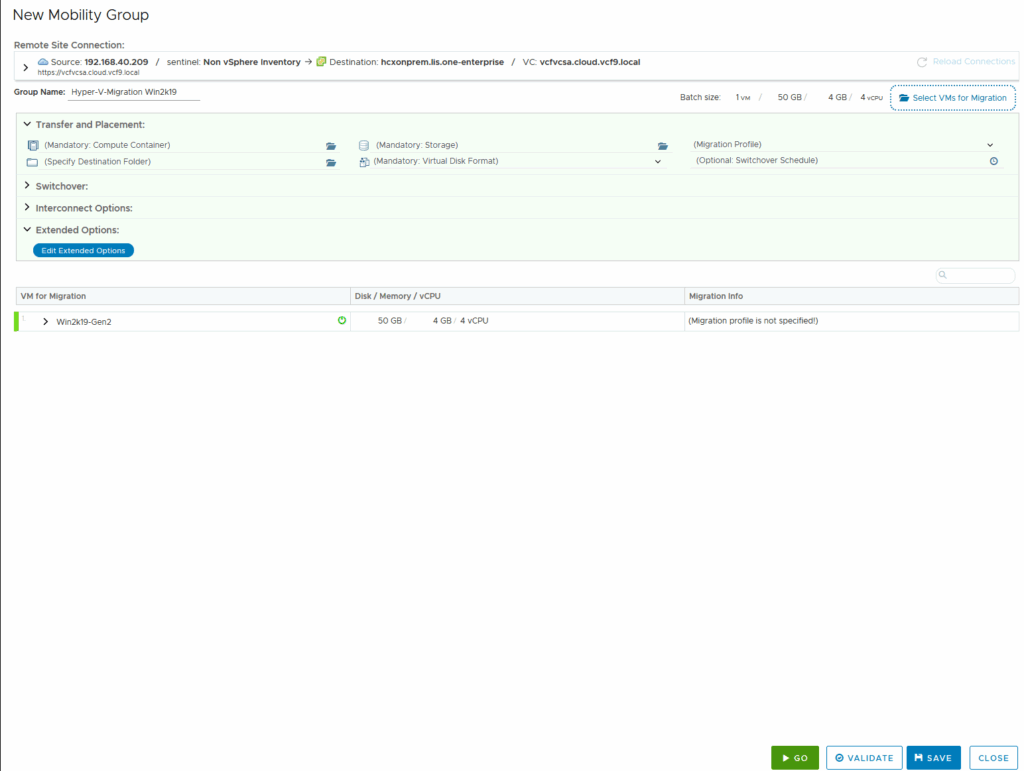
Setting all options and saving the group before the first validation:
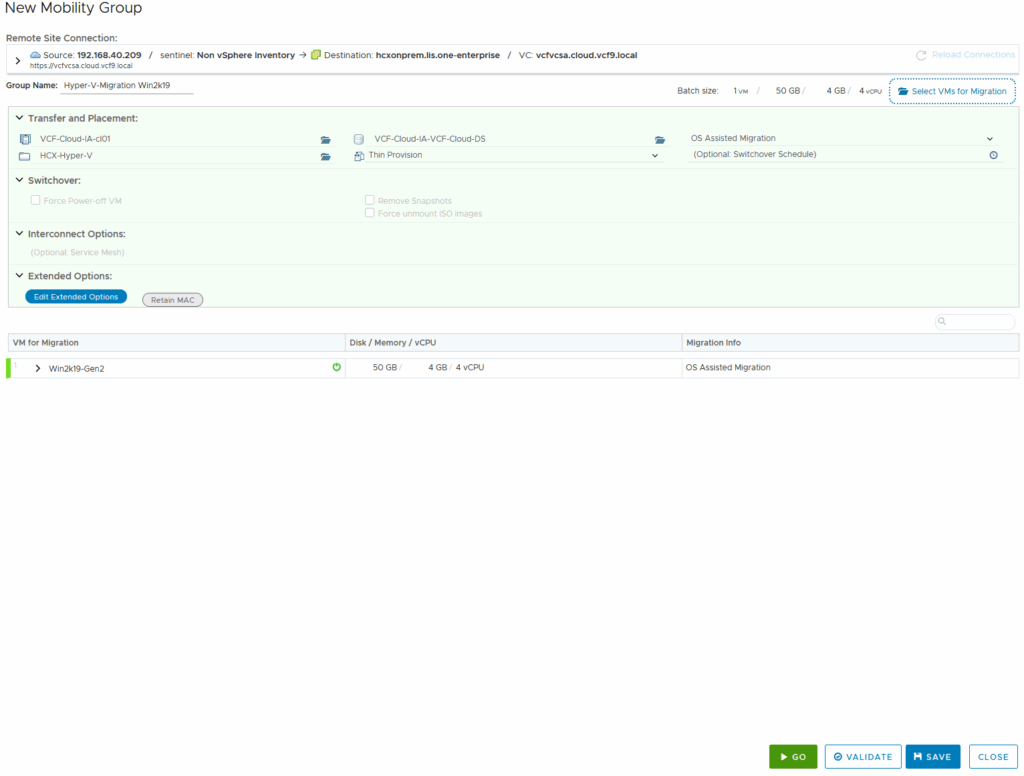
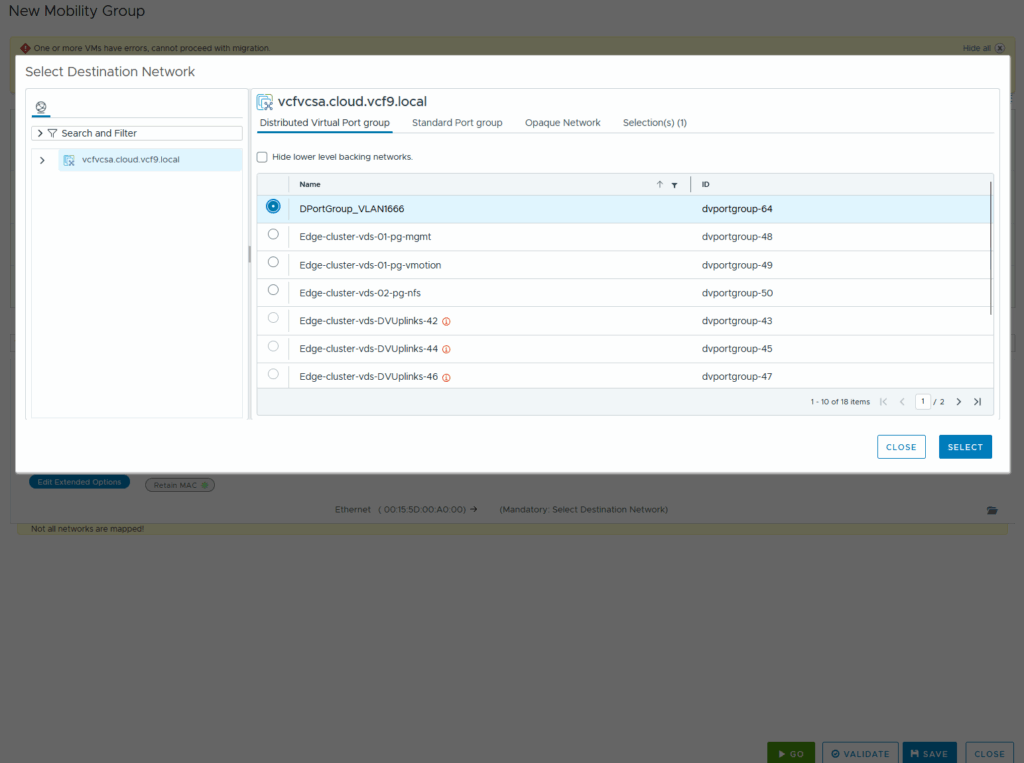
And as it happens sometime you forget something. Obviously we need to tell which Portgroup the soon to be vSphere VM should be using:
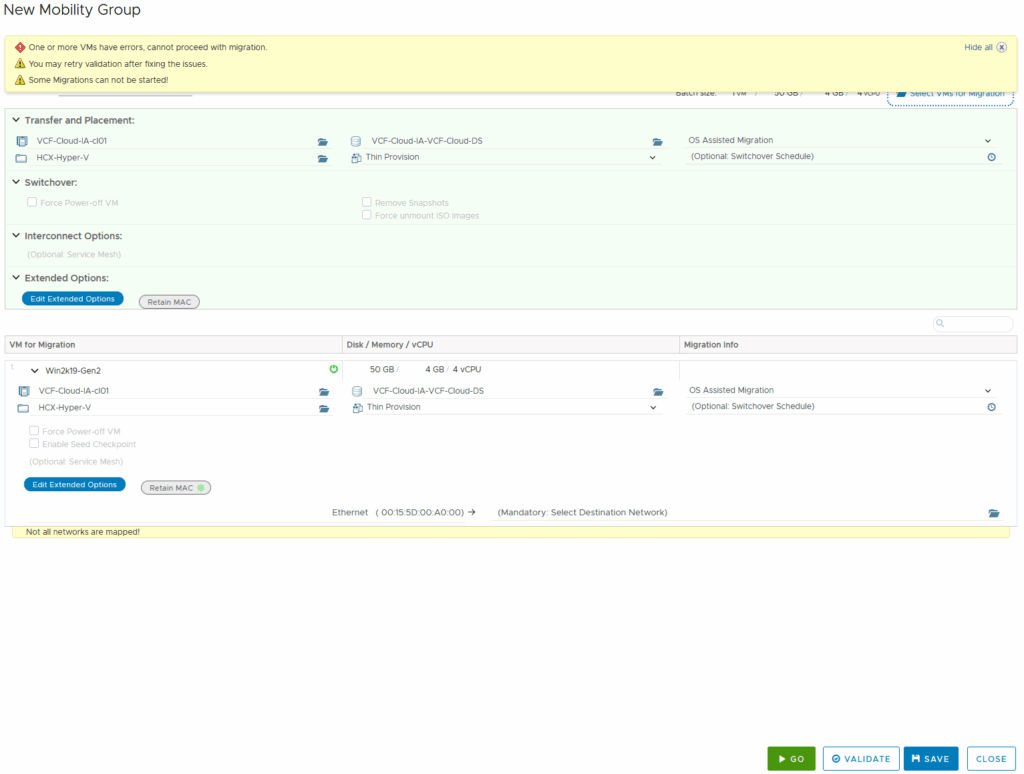
Select the Destination Network out of the List and we should be good to go:
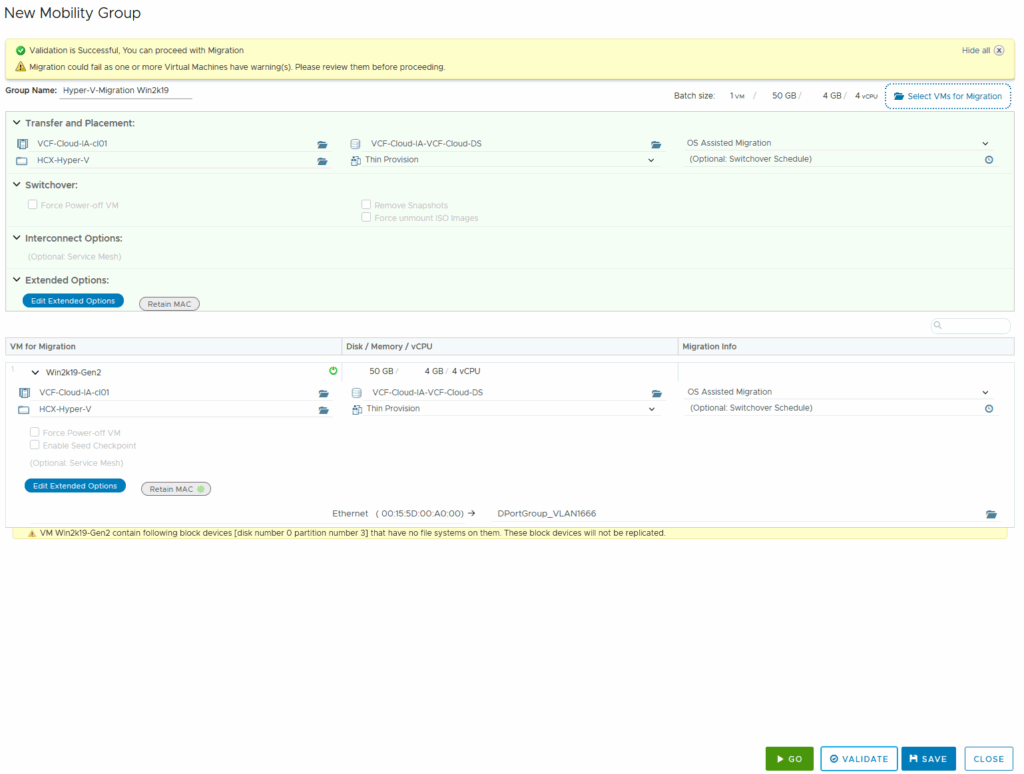
After the validation went trough we got warning about the system-reserved partition which cannot be replicated as it doesn’t have a filesystem on:
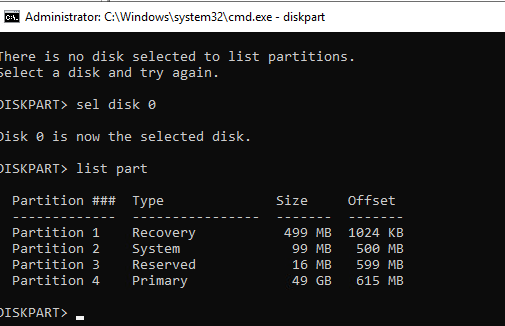
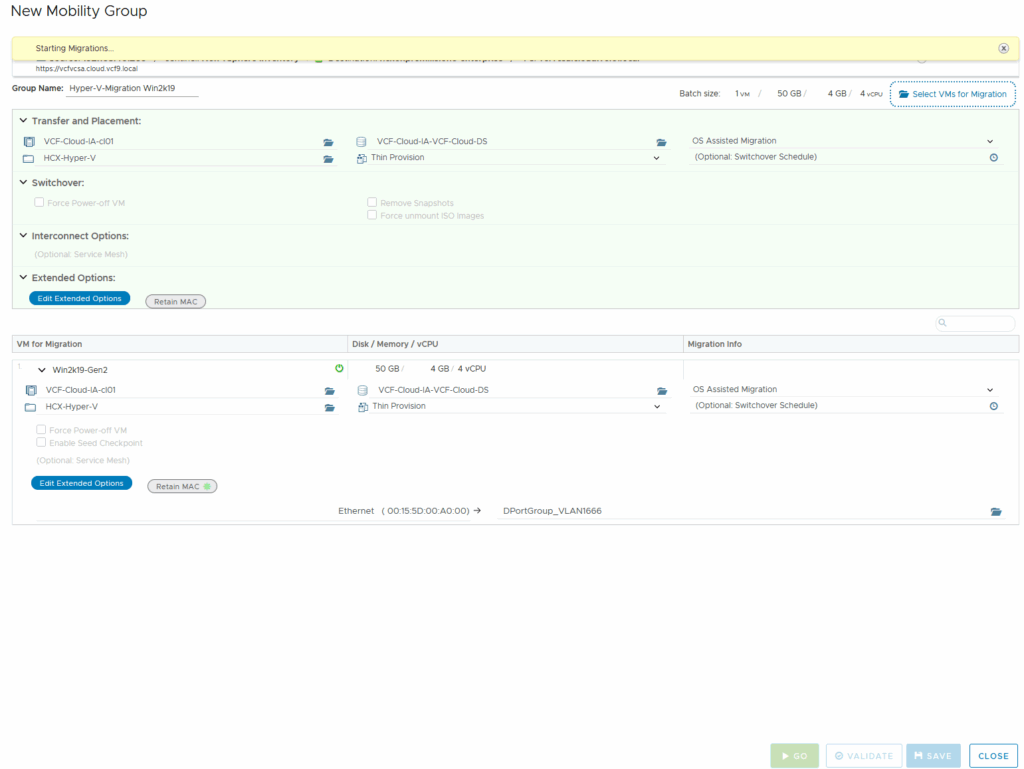
we hit the start button and wait untill hcx starts the job:
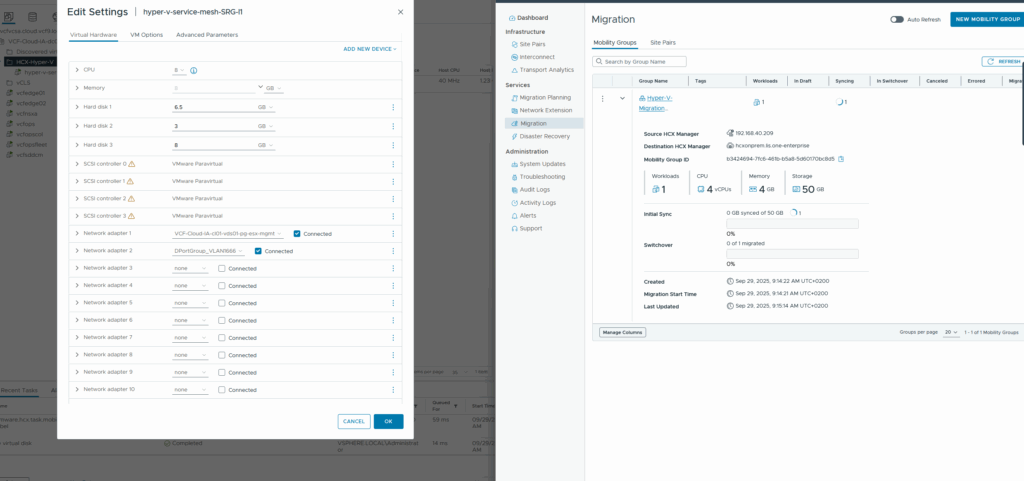
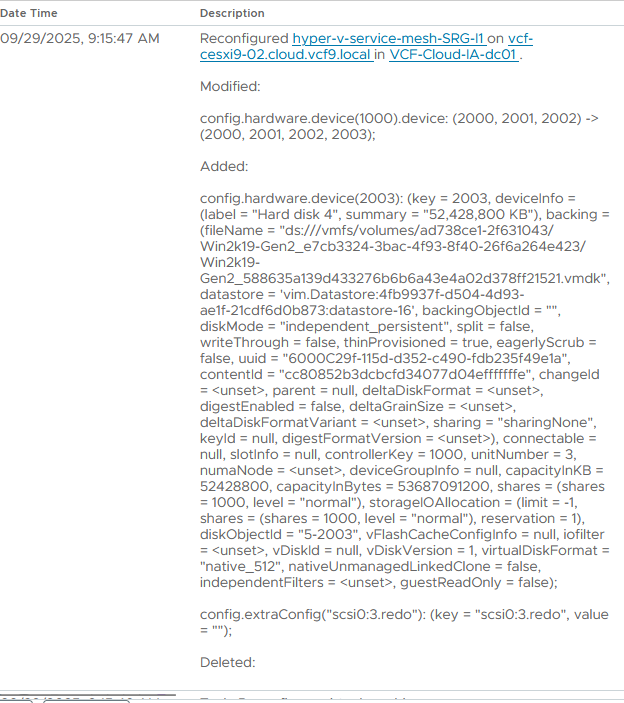
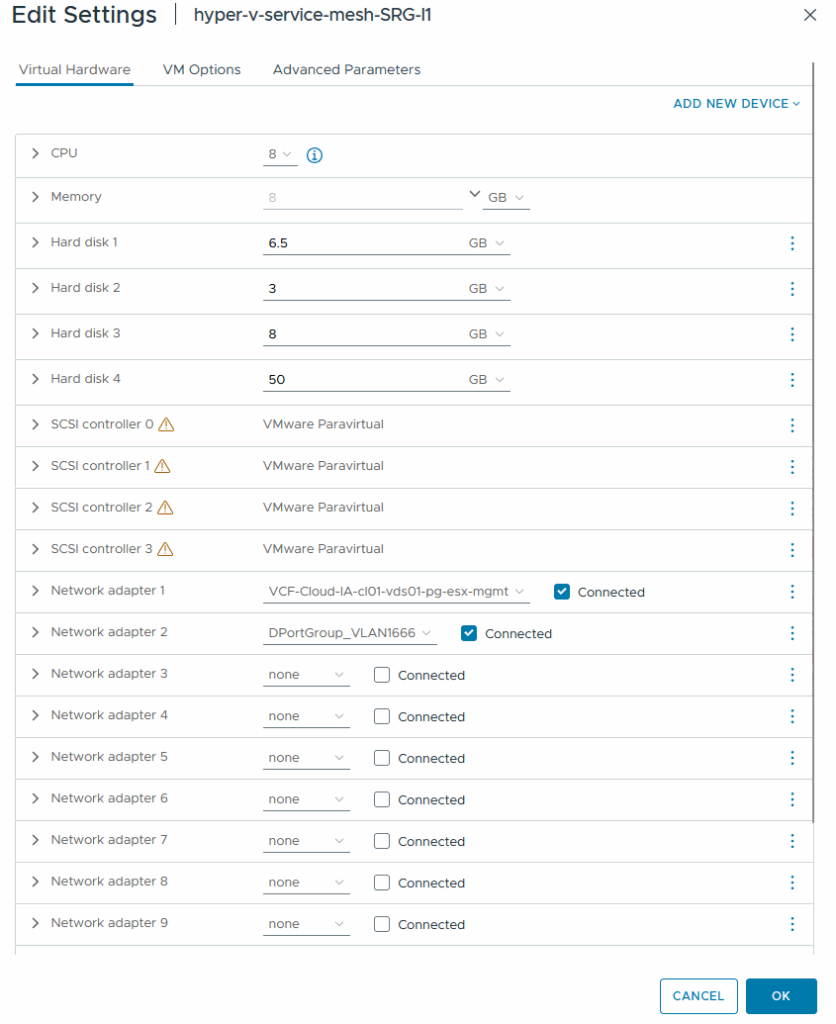
The sentinel machine gets new disks attached while the filesystems are replicated/synced:
Again, this will take some time depending on your infrastructure, transferring the whole disk-size is needed… but after some time the sync will be complete (keep in mind the Hyper-V Guest-VM was always running and usable)
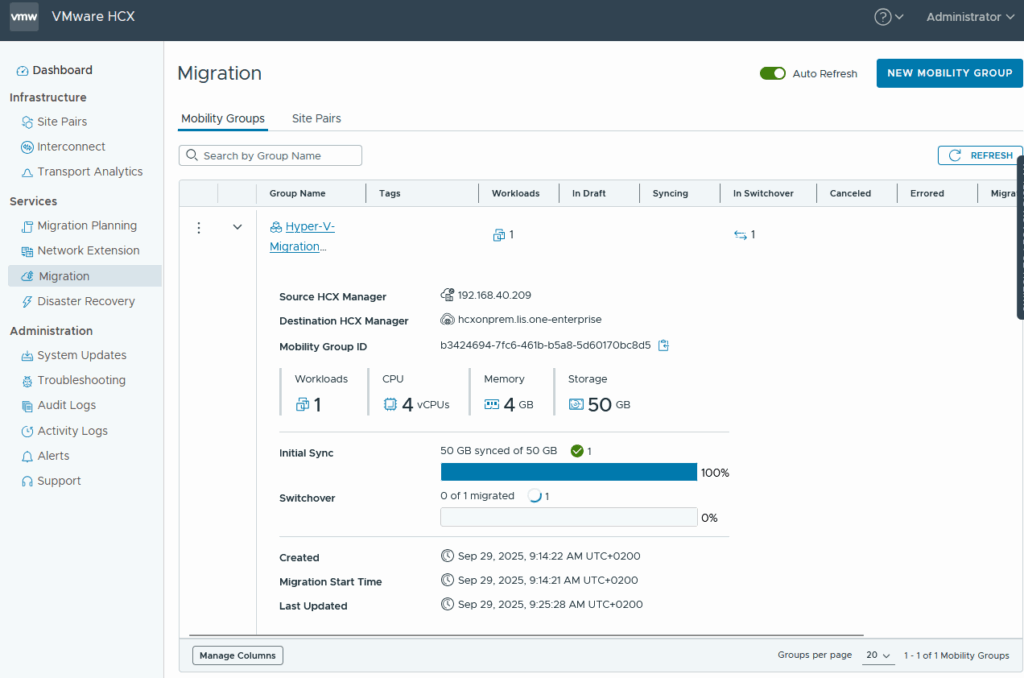

The cutover
So the initial sync is done (anyone having vcenter converter vibes?) now we need to to the cutover and finally do the migration.
We can see more details when we click on the group-name:
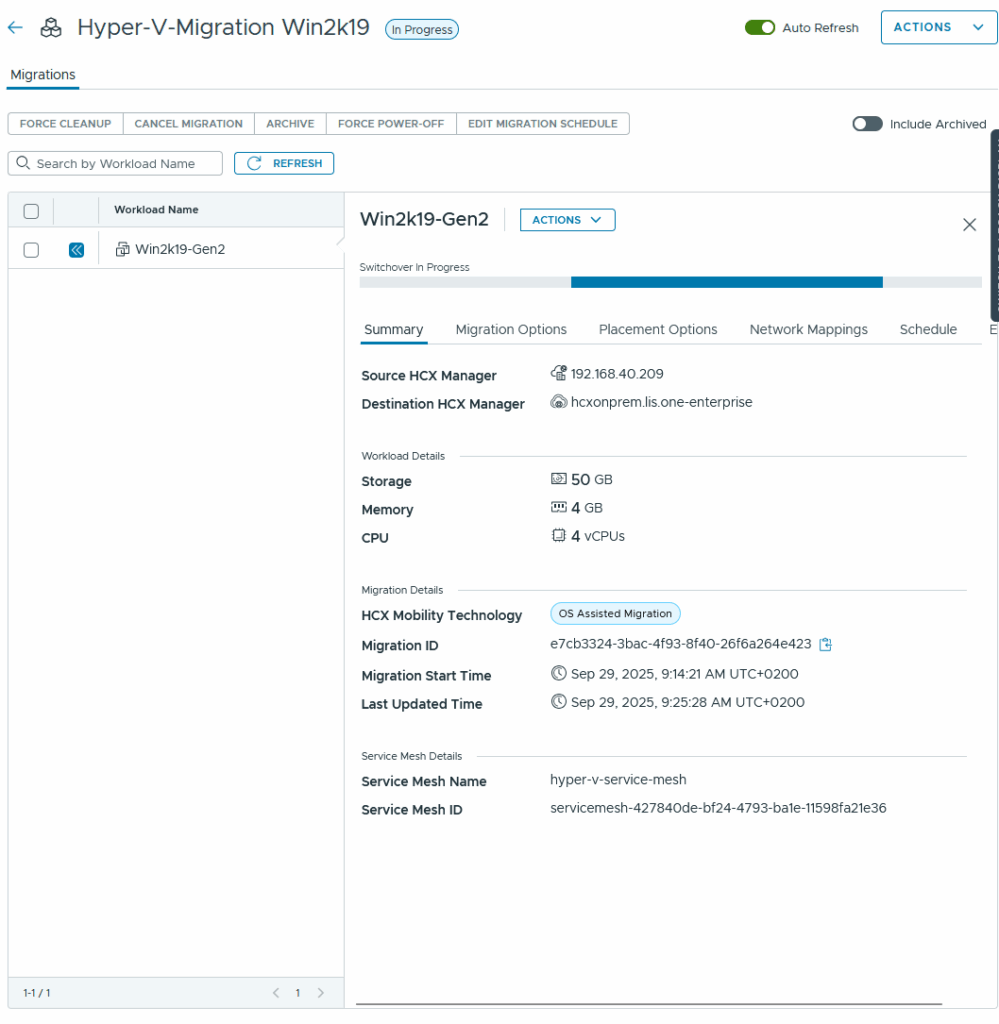
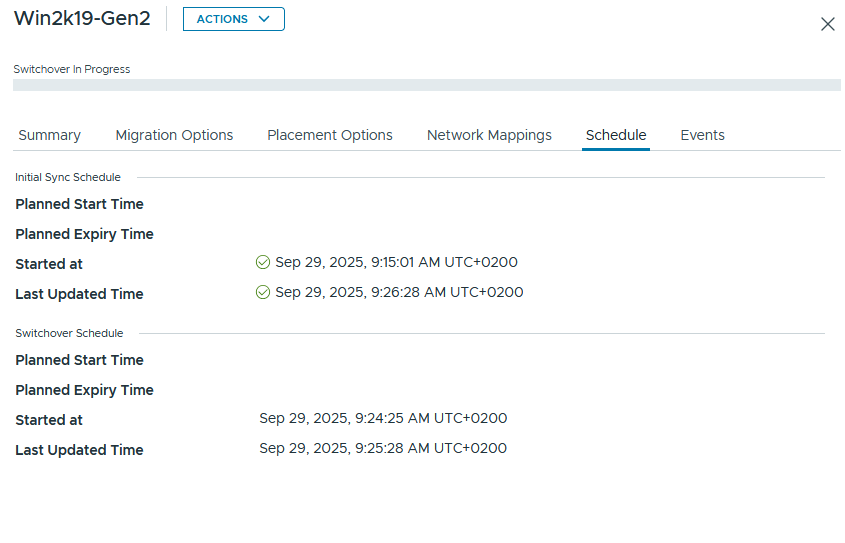
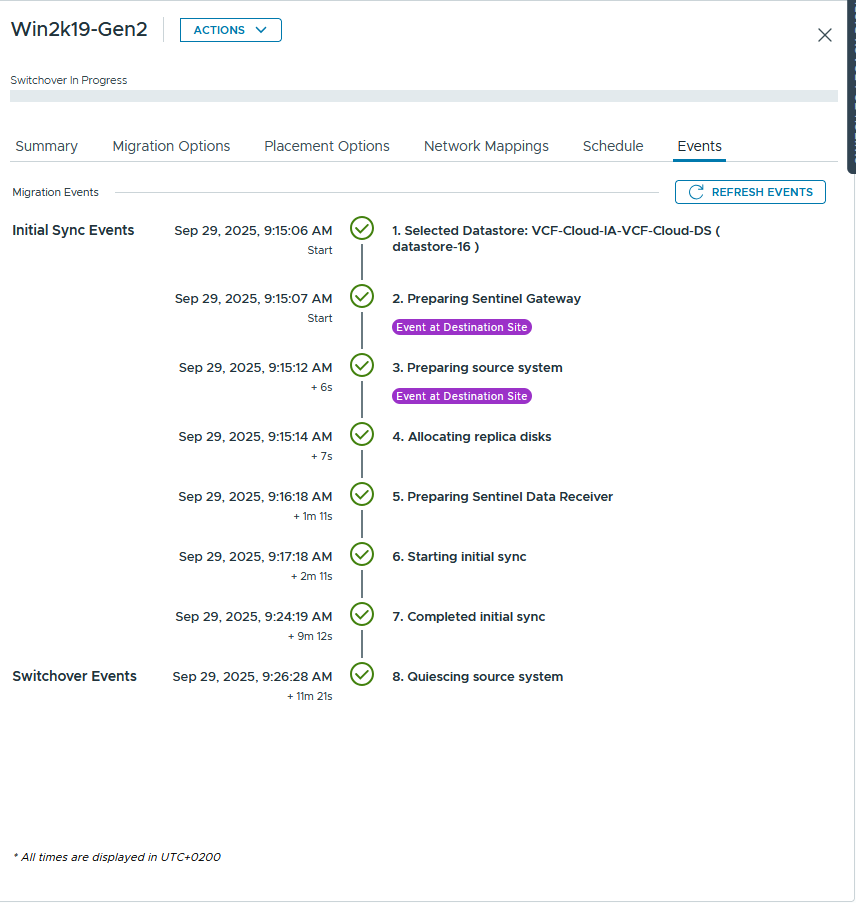
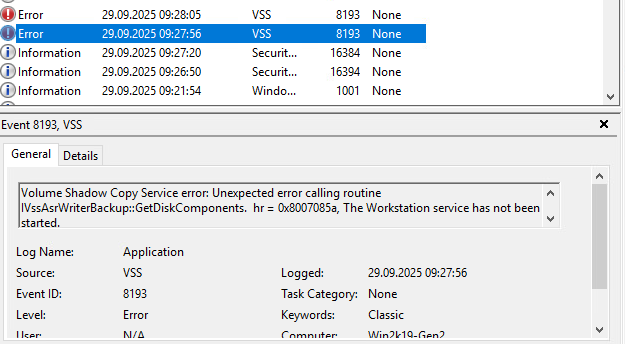
always love VSS errors:
And thats it! Now the VM is running on vSphere!